c

Raizes Player Manual
Raizes Player is a platform for creativity, allowing you to combine deep sampling with advanced synthesis. Whether you are performing live or designing soundscapes in the studio, the player provides a flexible architecture to shape your sound.
Overview
The interface is organized into 7 tabs accessible from the top menu bar:
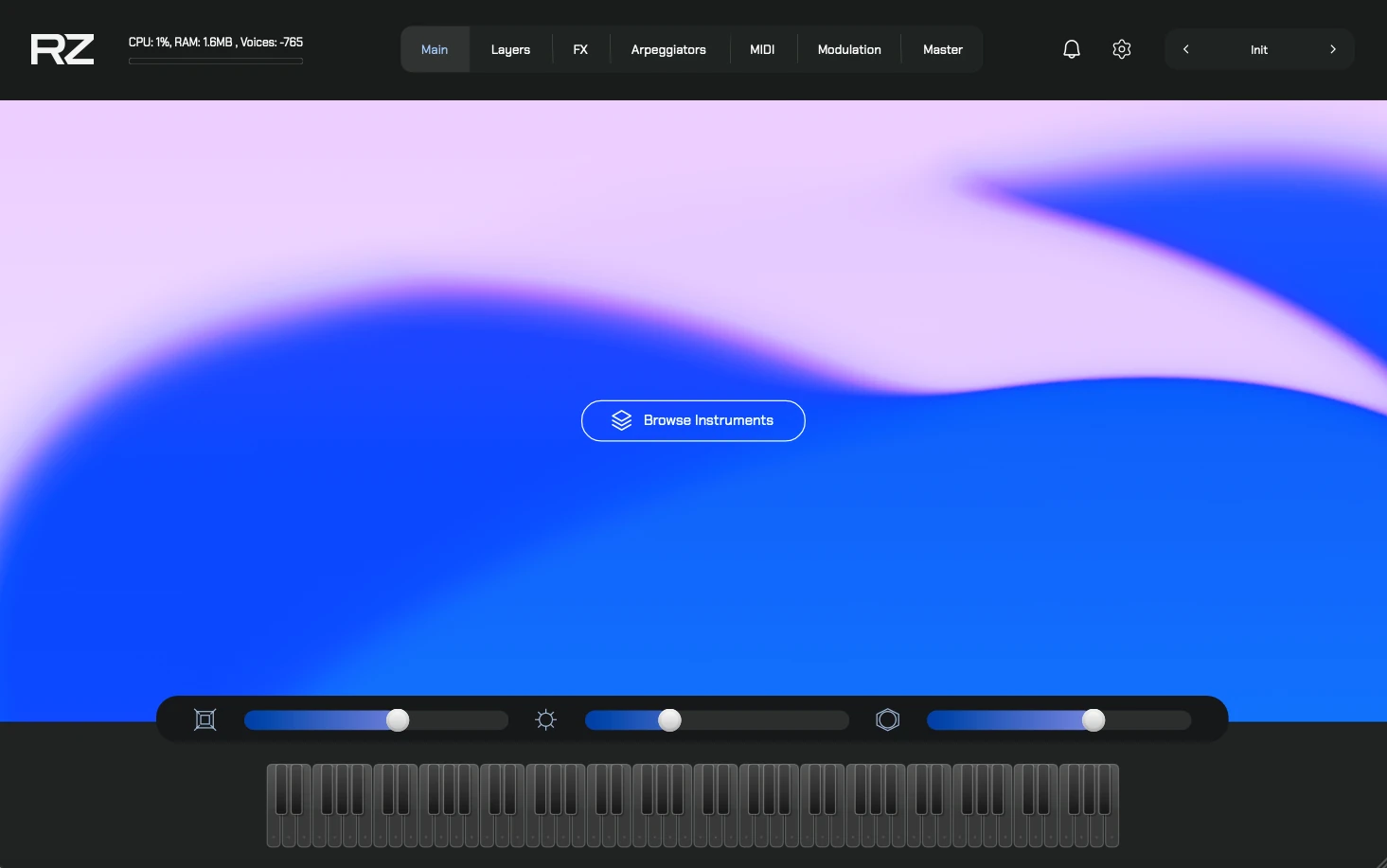
- Main — Global effects (Edge, Glow, Depth) and the Infinity Looper.
- Layers — 6 independent sound layers with full mixer, envelope, and filter controls.
- FX — Per-layer FX rack with 6 slots each (up to 36 effects total).
- Arpeggiators — 6 arpeggiators (one per layer) with note, velocity, and length graphs.
- MIDI — MIDI file browser and chord/progression generator.
- Modulation — 2 LFOs, MPE, macro assignments, and velocity curves.
- Master — Global output and master processing.
At the top bar you will also find:
- A peak meter and CPU performance label.
- Preset navigation (Previous / Next) with the current preset name.
- Settings and News buttons.
Installing Instruments
The core of Raizes Player is its Expansions—collections of sounds and presets. We have streamlined the installation process with a built-in Downloader Manager.
Important: An internet connection is required to install instruments.
However, once installed, you can use the player and all its features completely
offline.
First Time Setup
If this is your first time launching Raizes, a welcome screen will guide you through a 2-step setup:
- Storage Location: Select a destination folder for your sample content. This is where all expansion data will live.
- Confirmation: The player verifies write access and saves your selection.
Pro-Tip: You can choose an external drive to save space on your computer’s internal
hard drive. You can change this location later in Settings.
Step 1: Login
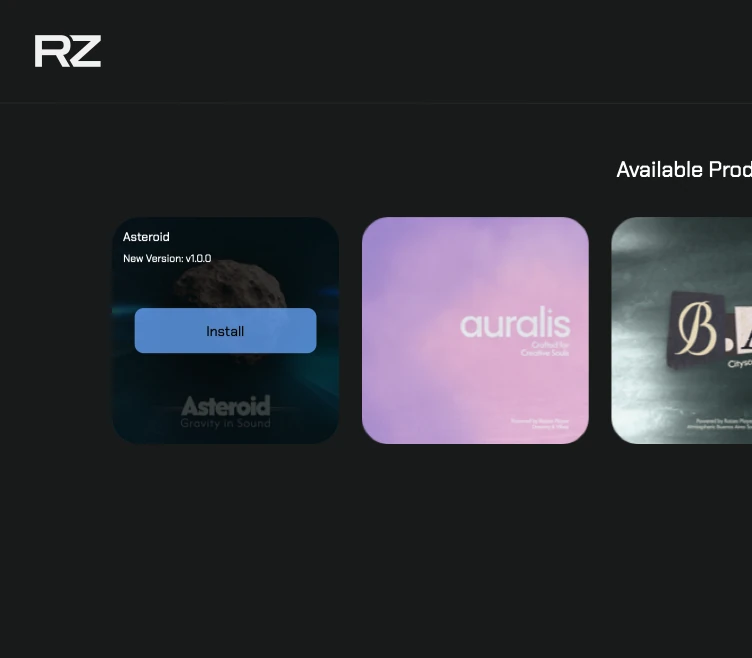
Open the player and click Browse Instruments. You will be prompted to log in with your account credentials (email and password).
Step 2: Download & Install
Once logged in, the player will show a list of your owned products.
- Products you own will appear in the list.
- Click Download to automatically download and install the expansion.
- If an update is available, an Update button will appear.
Expansion Colors
Each expansion can define its own visual theme. When you load an expansion, the interface gradients, slider colors, and keyboard highlights may change to match the expansion’s identity.
Main Tab
The Main tab is the first thing you see when opening Raizes Player. It provides quick access to the three global character effects and the Infinity Looper.
Global Effects
These three effects shape the overall character of your sound across all layers:
- Edge — A drive/distortion processor using cubic nonlinearity saturation with a built-in EQ stage. Adds grit, presence, and harmonic intensity. At low values it subtly enhances the upper harmonics; pushed higher it introduces aggressive overtones.
- Glow — A shimmer reverb engine with pitch-shifting. Combines a Schroeder reverb with spectral pitch transposition and stereo widening (Haas effect). Creates lush, evolving spatial tails that grow richer as you turn it up.
- Depth — A chorus-based spatial processor with stereo widening and EQ shaping. Adds movement, dimension, and width to the sound through modulated delay lines and a Haas stereo enhancer.
Each effect has a single knob for quick control, plus a bypass toggle to enable or disable it.

Infinity Looper
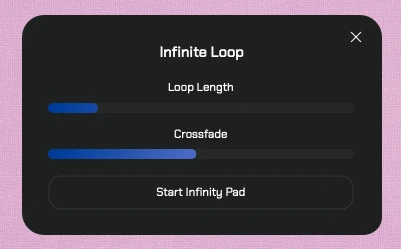
The Infinity Looper captures and loops audio in real time using a gapless circular buffer with built-in diffusion for seamless looping:
- Enable/Disable: Toggle the looper on or off. When turned on, the looper freezes the current audio and plays it back in a continuous loop. When off, it records live audio.
- Length: Controls the loop duration (0.1–12 seconds).
The looper uses an IIR diffuser (cascaded allpass-comb filters) to create smooth transitions at loop boundaries, preventing clicks and adding an organic, slightly blurred quality to the frozen audio. This makes it ideal for building up evolving textures during live performance or sound design—play notes, engage the looper, and layer new sounds on top.
The Layers Engine
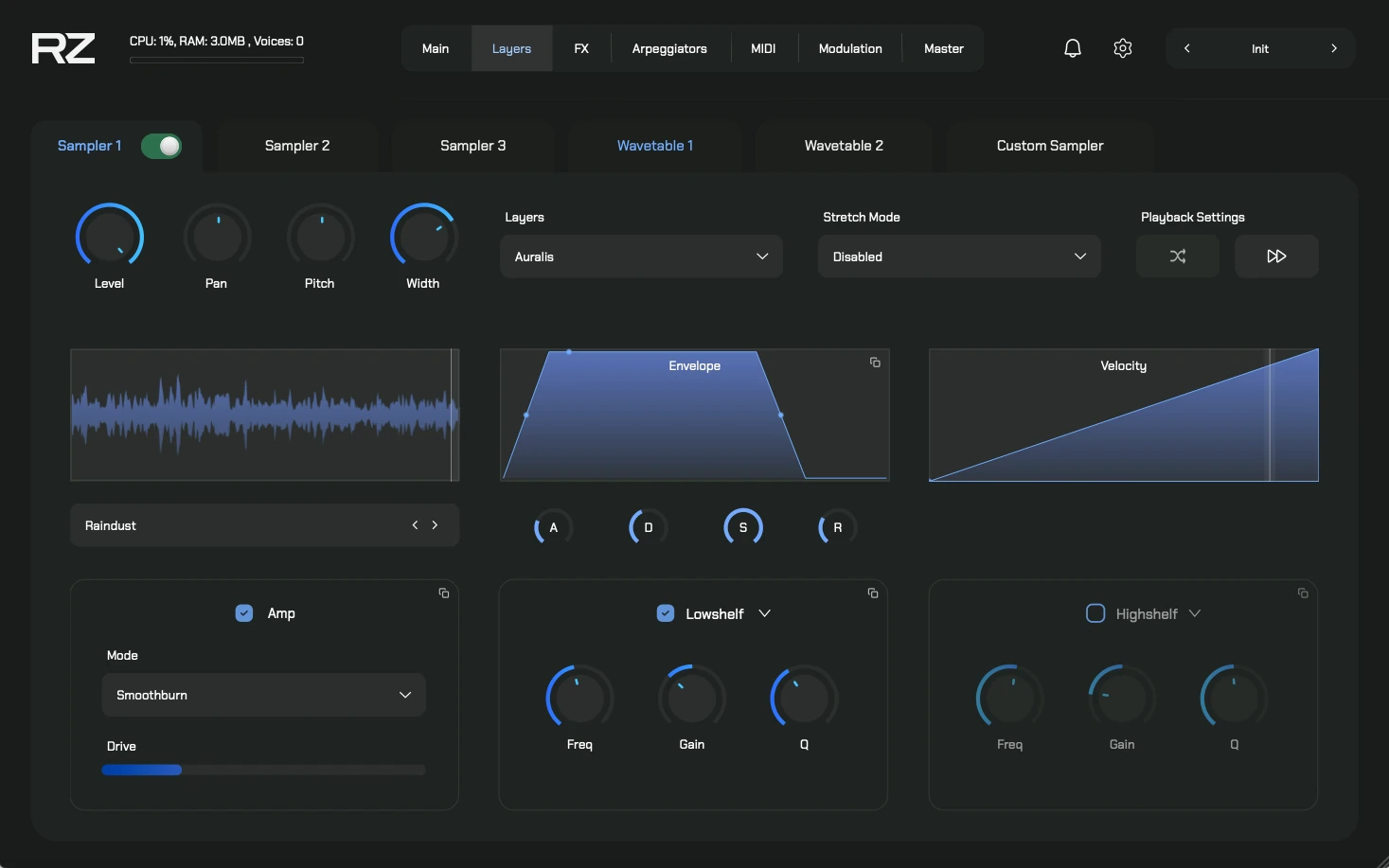
Raizes Player features 6 independent audio layers, allowing for massive stacking capability. Each layer can be toggled on or off individually.
Layer Types
| Layer | Type | Description |
|---|---|---|
| 1, 2, 3 | Sampler | Load sample maps from your expansions. Includes stretch modes and playback controls. |
| 4, 5 | Wavetable | Synthesis layers using wavetable technology with index scanning and unison. |
| 6 | Custom Sampler | Drag and drop your own audio samples to mix with the engine’s sounds. |
Layer Controls
Every layer has a full channel strip with the following controls:
Mixer
- Gain: Controls the layer’s volume level.
- Pan: Positions the layer in the stereo field.
- Width: Controls the stereo spread of the layer.
Amp & Drive
- Amp Drive: Adds saturation/distortion specific to that layer (Polyshape FX).
- Amp Mode: Selects the type of saturation curve applied.
Envelope (AHDSR)
Shape the amplitude of each layer over time:
- Attack: How quickly the sound reaches full volume.
- Decay: How quickly it drops to the sustain level.
- Sustain: The level held while a key is pressed.
- Release: How long the sound fades after releasing the key.
Each stage also has a curve control for shaping the contour (linear, exponential, etc.).
Filters (2 Per Layer)
Each layer has two independent filters with a visual frequency display. Filter types include:
- Lowpass, Highpass, Lowshelf, Highshelf, Peak, Bandpass, and Notch.
Each filter has controls for Frequency, Gain, and Q (resonance).
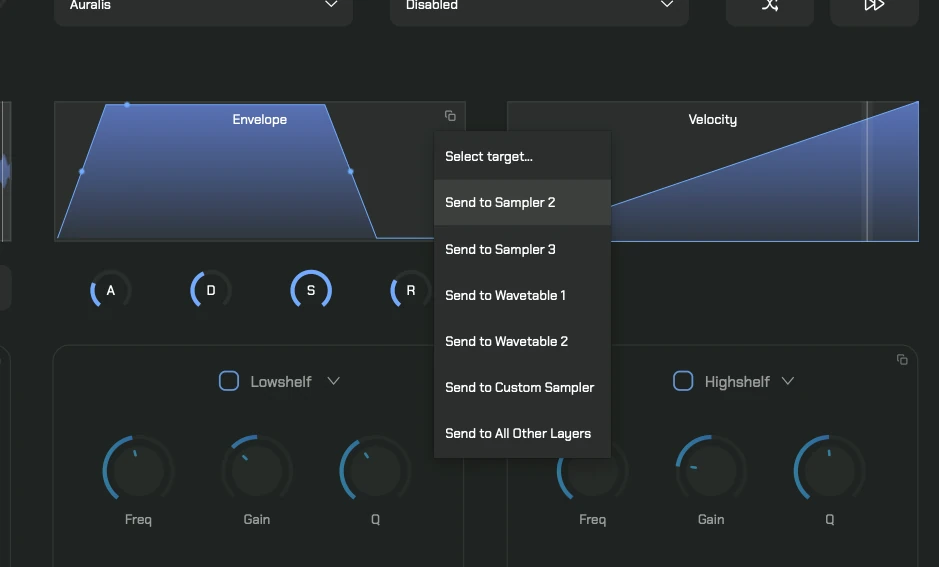
Copy/Paste: Use the copy/paste buttons to send envelope, amp, or filter settings
from one layer to another—or to all layers at once. This saves time when you want consistent
settings across your sound.
Sampler Specifics (Layers 1–3)
Sample Map Selection
Use the dropdown to load different sample maps from your active expansion. Each expansion provides its own collection of samples to choose from.
Stretch Mode
- Disabled: Normal sample playback.
- Start: Sets a fixed playback start position.
- Time Variant: Allows modifying the start position in real-time using the slider.
- Tempo Synced: Synchronizes playback speed with your DAW.
CPU Warning: Stretch Mode requires significant processing power. It is
recommended to use this feature only on powerful computers.
Playback Settings
- Random: Starts the sample from a random position each time a note is played.
- Forward/Backwards: Controls the playback direction.
Wavetable Specifics (Layers 4–5)
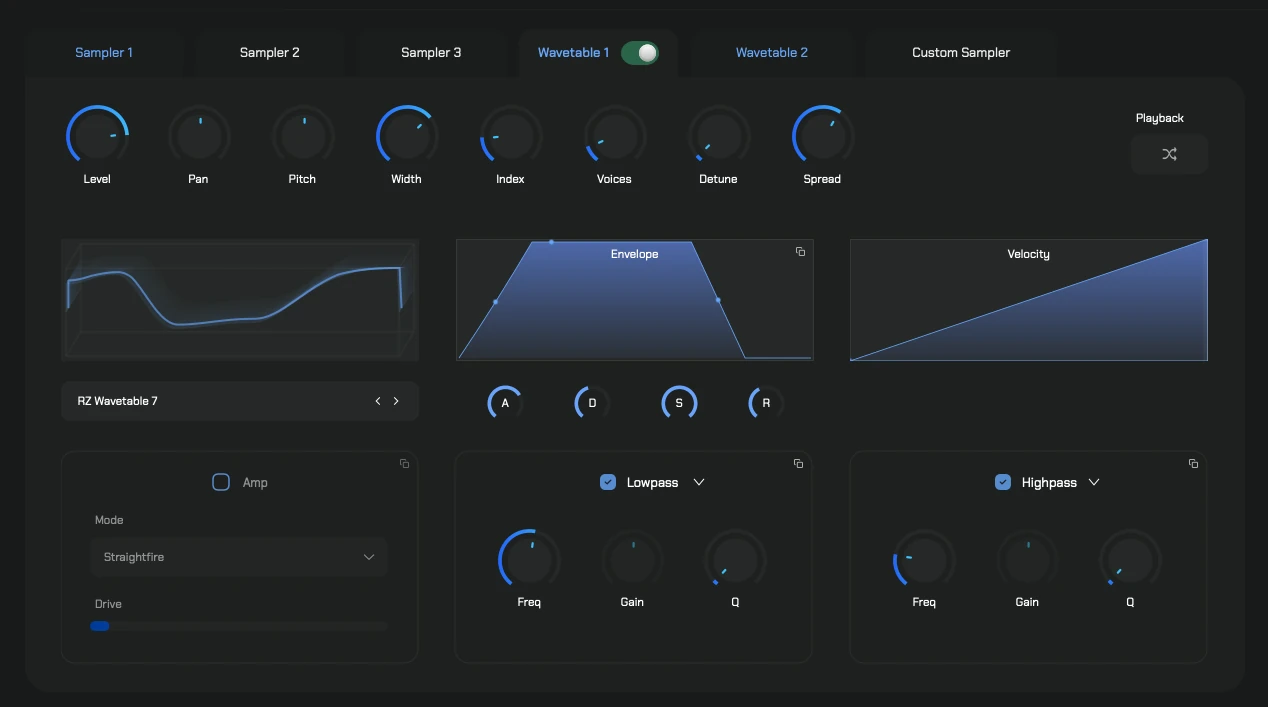
- Index: Scans through the wavetable, changing the harmonic content.
- Voices (Unison): Doubles the number of voices, with controls for Detune and Spread.
- Waterfall Display: Visual representation of the wavetable.
- Navigation: Browse through wavetable banks with Previous/Next buttons.
Custom Sampler (Layer 6)
- Drag & Drop: Load any audio file directly onto this layer.
- Root Note: Set the root note for correct pitch mapping.
- Loop Controls: Enable looping for sustained playback.
- Reverse: Play the sample backwards.
FX Rack
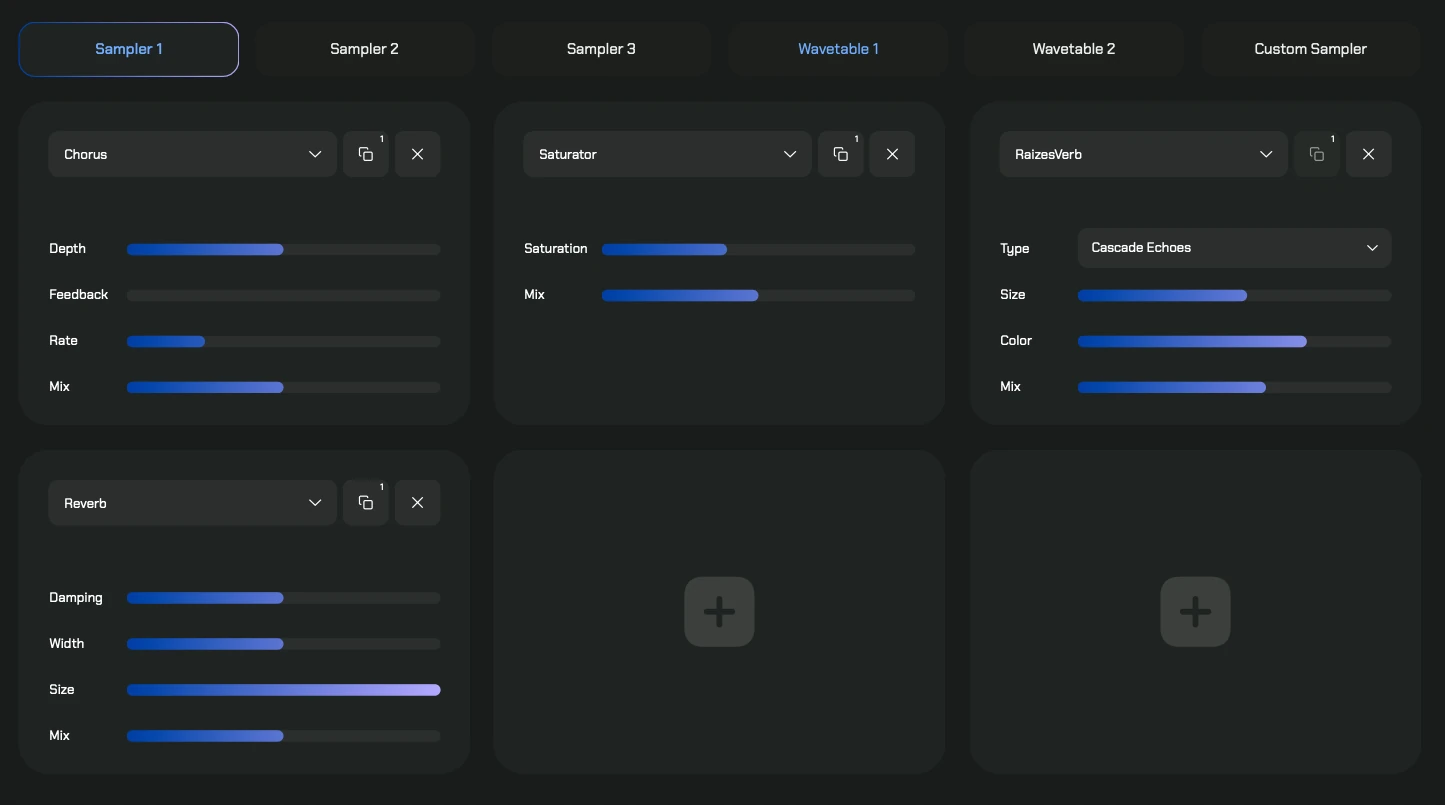
Sculpt your tone with the 6-slot FX Rack available for each layer independently. That’s up to 36 effect slots across all 6 layers.
How It Works
- Select a layer tab at the top of the FX page.
- Click the Load button on any of the 6 slots.
- Choose an effect from the dropdown menu.
- Adjust the parameters using the knobs that appear.
Available Effects
Tone Shaping
| Effect | Parameters | Description |
|---|---|---|
| EQ | Freq 1, Gain 1, Freq 2, Gain 2, Freq 3, Gain 3 | 3-band parametric equalizer using state-variable filters in peaking mode. Each band has independent frequency (20 Hz–20 kHz) and gain (-18 to +18 dB) controls for precise tonal sculpting. |
| Saturator | Saturation, Mix | Soft-clipping waveshaper that adds harmonic warmth and grit. Uses a custom SNEX saturation curve for smooth, musical distortion. |
| BitCrusher | Downsample (1–64), Bit Depth (4–16), Mix | Two-stage lo-fi processor. The sample-and-hold reduces the effective sample rate, while the bit depth reducer quantizes the amplitude. Great for retro textures, digital artifacts, and gritty character. |
Modulation
| Effect | Parameters | Description |
|---|---|---|
| Chorus | Depth, Feedback, Rate, Mix | Classic chorus using LFO-modulated delay lines. Thickens and widens the sound with adjustable modulation speed and depth. Feedback can create flanging effects at higher settings. |
| WowFlutter | Wow Rate, Wow Depth, Flutter Rate, Flutter Depth | Tape emulation using two independent modulated delay lines with triangle-wave LFOs. Wow (0–2 Hz) creates slow pitch drift, Flutter (2–20 Hz) adds fast micro-variations. Includes built-in tape saturation (tanh soft-clipping) and an 8 kHz lowpass filter for authentic vintage character. |
Spatial & Delay
| Effect | Parameters | Description |
|---|---|---|
| Reverb | Damping, Width, Size, Mix | Freeverb algorithm—a classic Schroeder reverberator with 8 parallel comb filters and 4 series allpass diffusers. Damping controls high-frequency absorption, Width sets stereo spread, and Size controls the tail length. |
| RaizesVerb | Size, Color, Mix | Convolution reverb using a real impulse response recorded in a natural space. Size shapes the decay length through EQ filtering, and Color switches between two filter modes (lowpass vs. highshelf) for warm or bright reverb character. Includes a built-in limiter for transient protection. |
| Delay | TimeSync, Feedback, Size, Damping, Mix | Tempo-synced delay based on the Greyhole algorithm—a hybrid between a traditional delay and a reverb. TimeSync locks to your DAW BPM, Size adds internal diffusion and reverb density, and Damping controls high-frequency rolloff in the feedback loop. Creates everything from clean echoes to massive ambient washes. |
| ChillDelay | Time (0–5000 ms), Feedback, Interpolation, Mix | Free-running smooth delay with a large buffer (~10 seconds). Not tempo-synced, so it’s perfect for loose, organic echoes. The Interpolation control determines how smoothly the delay time transitions when changed—higher values create pitch-gliding tape-delay effects, lower values snap instantly. |
Creative
| Effect | Parameters | Description |
|---|---|---|
| GranularFX | Pitch (-3 to +3 st), Grain Size (20–1200 ms), Density, Scatter, Stereo, Mix | 8-voice granular processing engine. Continuously captures audio into a circular buffer, then plays it back as overlapping grains with Hann-window envelopes. Pitch shifts grains in semitones, Grain Size controls individual grain duration, Density sets how frequently grains trigger, Scatter randomizes the read position for each grain, and Stereo spreads the grain cloud across the stereo field. Creates shimmering clouds, frozen textures, pitch-shifted atmospheres, and experimental soundscapes. |
Copy/Paste FX
You can copy an entire effect slot’s settings and paste them into another slot. This works across layers, so you can build a processing chain on one layer and replicate it everywhere.
Arpeggiator
Raizes Player includes 6 independent arpeggiators—one for each layer. This means you can run different rhythmic patterns on different layers simultaneously for complex, evolving textures.
Per-Layer Tabs
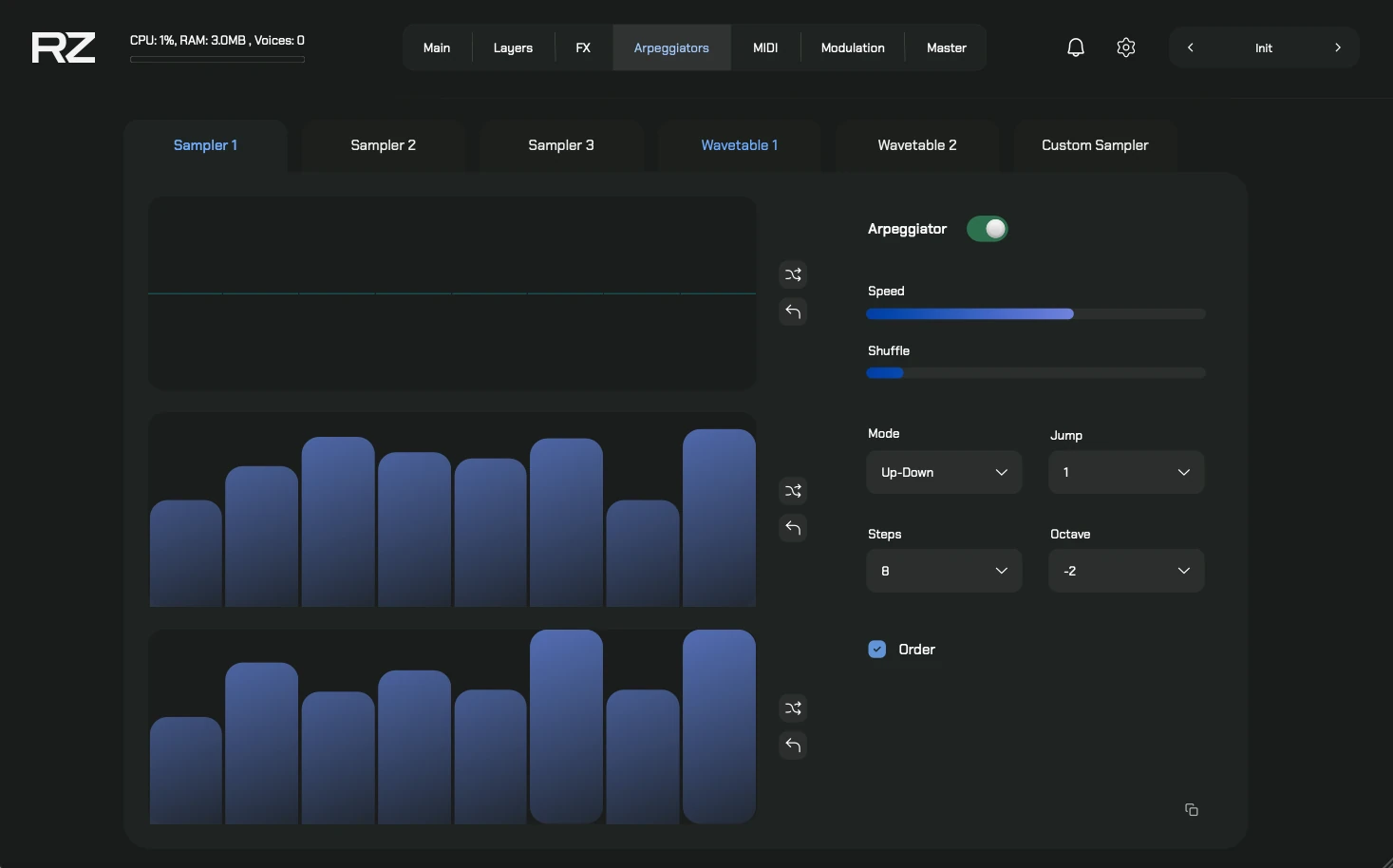
Select the layer tab at the top to configure the arpeggiator for that specific layer. Each arpeggiator can be enabled or disabled independently.
Three Graph Editors
Each arpeggiator has 3 slider-pack graphs that define the sequence:
| Graph | What It Controls | Range |
|---|---|---|
| 1. Note Numbers | The melodic interval (pitch offset) for each step. | Semitones, with octave shifts |
| 2. Velocity | The volume/strength of each step. | 0–127 |
| 3. Note Length | The duration of each note step. | Short to full step length |
Controls
- Mode: Playback direction—Up, Down, Up-Down, Down-Up, Random, or Chords (plays all pressed notes simultaneously on each step).
- Jump: The interval in semitones between each arpeggiated step (-13 to +13).
- Steps: Sequence length (1 to 32 steps).
- Octave: Octave spread for the arpeggiated notes (-2 to +4).
Random & Reset
Each graph has dedicated buttons:
- Random: Generates a randomized pattern. For the Note Numbers graph, randomization is scale-aware—it picks from musical scales (Major, Minor, Dorian, Pentatonic, Blues, Whole Tone, and more) so the result always sounds musical.
- Reset: Returns all sliders to their default values.
MIDI Section
The MIDI tab is divided into two panels: the MIDI Packs browser and the MIDI Generator. Switch between them using the buttons at the top.
MIDI Packs Browser
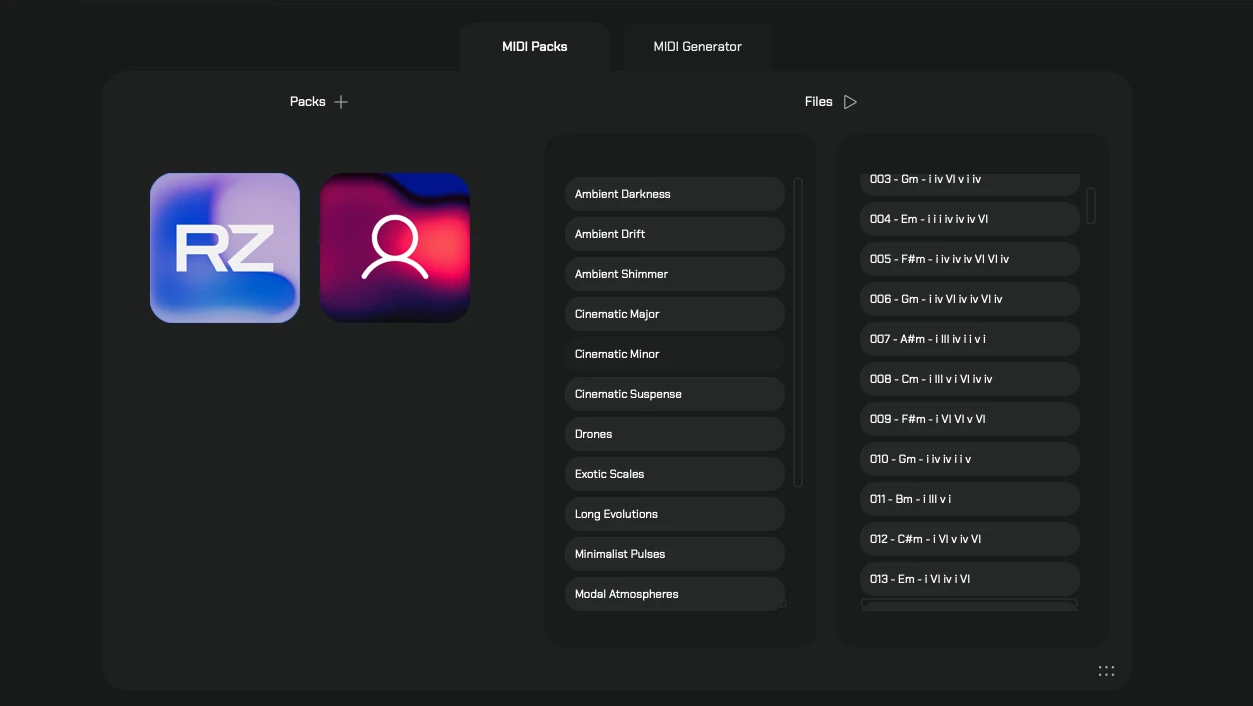
Browse, preview, and load MIDI files organized by pack and category.
- Pack Grid: Visual grid showing all installed MIDI packs with cover artwork.
- Categories: Each pack contains sub-folders (categories) listed on the left.
- Files: MIDI files within the selected category, listed on the right.
- Play/Stop: Preview the selected MIDI file.
Drag to DAW
You can drag MIDI files directly into your DAW using the drag handle at the bottom-right corner of the MIDI tab.
MIDI Generator
Generate chord progressions and sequences that you can preview, tweak, save, or drag into your DAW.
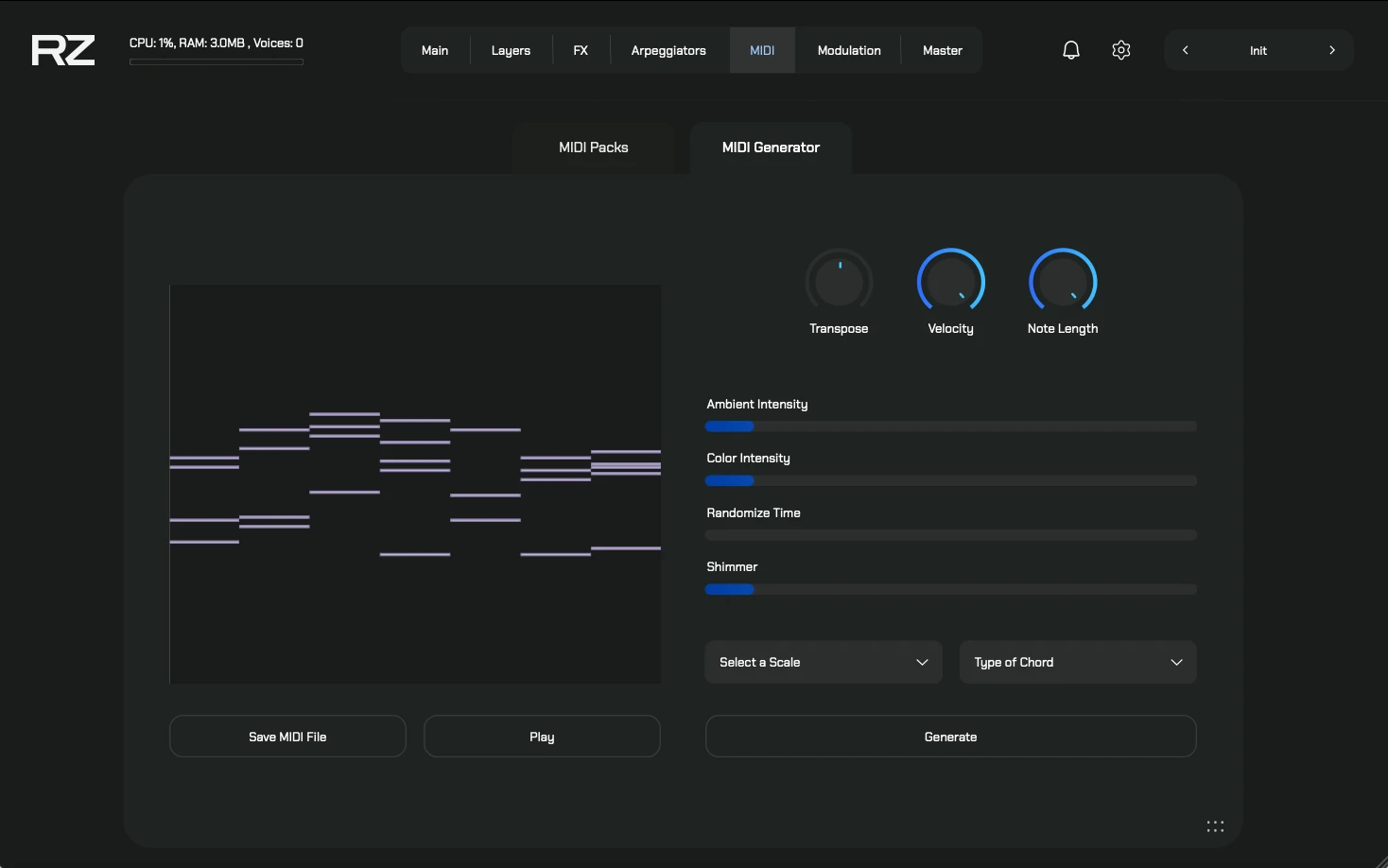
How to Generate
- Select a Scale from the dropdown (Major, Minor, Dorian, Harmonic Minor, Pentatonic, and more).
- Select a Chord Type (Triad, Seventh, Sus2, Sus4, Open, Cluster).
- Click Generate to create a new progression.
- Tweak the parameters below to reshape the sequence in real-time.
Generator Parameters
| Control | Type | Description |
|---|---|---|
| Transpose | Knob (-12 to +12) | Shifts the entire progression up or down in semitones. |
| Velocity | Knob (0.5–2.0) | Scales the velocity of all notes. Higher values = louder, more dynamic. |
| Note Length | Knob (0%–100%) | Controls how long each chord is held relative to its slot in the progression. |
| Ambient Intensity | Slider (0–100) | At low values, generates simple chords. As you increase it, the generator adds extension notes, drones, and wider voicings for a more atmospheric result. |
| Color Intensity | Slider (0%–100%) | Controls how much harmonic tension is injected. Higher values introduce more dissonant and colorful extension notes. |
| Randomize Time | Slider (0–100 ms) | Adds subtle timing variations to note positions for a more human feel. |
| Shimmer | Slider (0%–100%) | Adds octave-doubled notes above the chord. At low values, only a few notes shimmer. At high values, full chords are doubled one and two octaves up. |
Real-Time Tweaking: All parameters (except Generate) modify the existing progression
without creating a new one. This means you can generate a progression you like, then fine-tune
Shimmer, Ambient Intensity, and other controls to sculpt it without losing the chord changes.
Saving MIDI Files
Click Save MIDI File to export the generated progression:
- Custom MIDI: Saves into your MIDI Packs library under a category of your choice. You can create new category folders on the fly.
- Desktop: Saves the file directly to your desktop for quick access.
Modulation System
Raizes Player offers a deep modulation system with multiple sources that can control almost any parameter in the instrument.
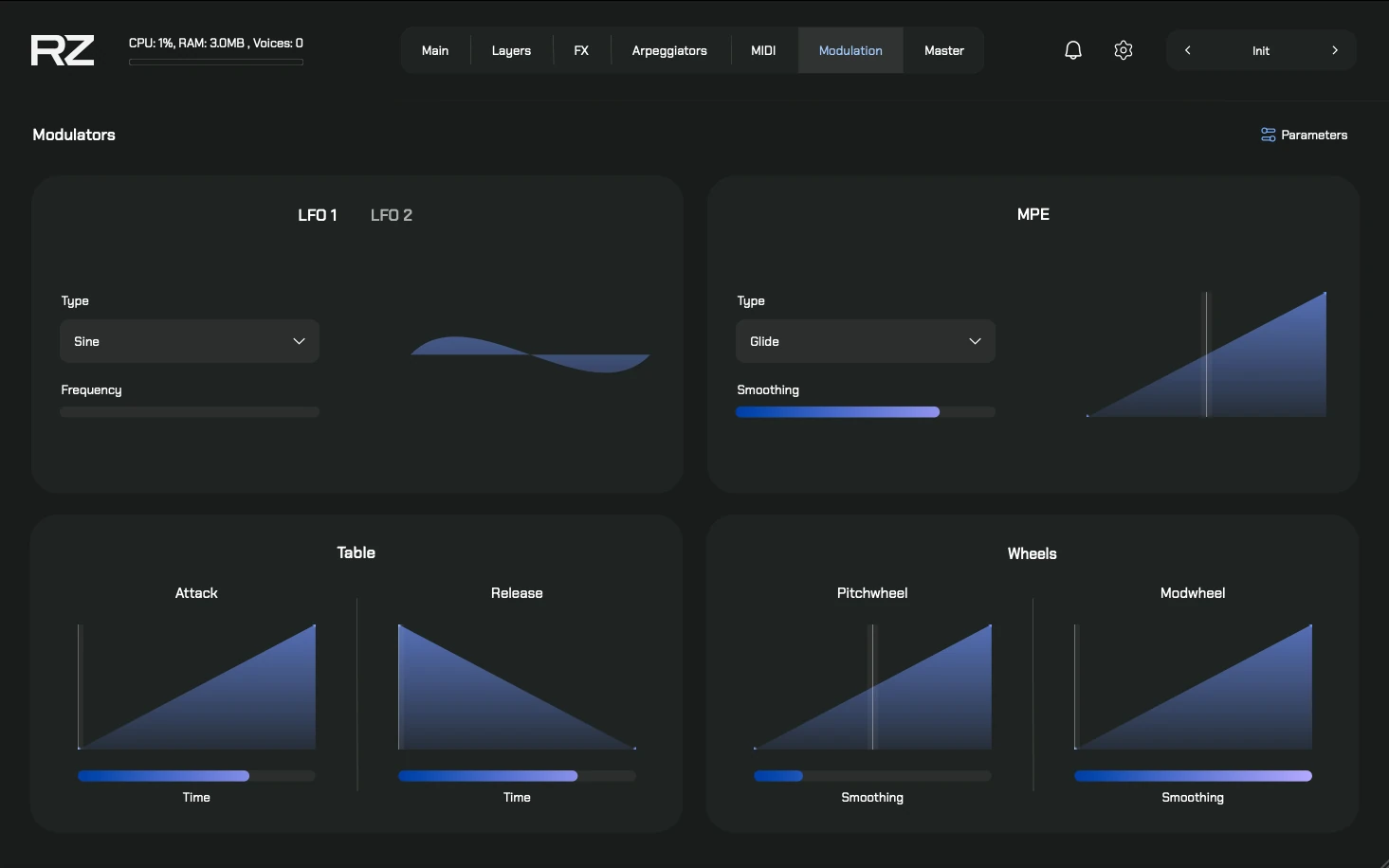
Modulation Sources
The following sources can be assigned to parameters:
- LFO 1
- LFO 2
- MPE
- Table
- Pitch Wheel
- Mod Wheel (CC1)
How to Assign Modulation
Right-click on any knob or slider in the interface. A context menu will appear with
options like “Connect to LFO 1” or “Connect to Mod Wheel.” Select your source, and the modulation is
instantly applied.
LFO 1 & LFO 2
Two independent Low Frequency Oscillators for adding movement and animation to any parameter.
- Waveform Type: Choose from Sine, Triangle, Saw, Square, Random, Custom, or Steps.
- Frequency: Controls the speed of the oscillation (0.1–40 Hz).
When Custom is selected, a table editor appears where you can draw your own modulation shape. When Steps is selected, a slider pack appears for creating step-based patterns.
MPE (MIDI Polyphonic Expression)
The third modulator. Raizes Player supports MPE for expressive per-note control from compatible controllers.
- MPE Type: Select the MPE mode to match your controller.
- MPE Smoothing: Controls how smoothly MPE data (glide, pressure) is applied. Lower values give immediate response; higher values create smoother, more gradual transitions.
MPE Controllers: Raizes Player works with MPE-compatible controllers like the
Roli Seaboard, Linnstrument, Sensel Morph, and the RZ Mobile app’s keyboard.
Table
A custom curve editor for drawing your own modulation shape. Use it to create attack/release envelopes or any arbitrary curve that maps to a parameter over time.
Pitch Wheel
Routes your MIDI pitch wheel as a modulation source. Assign it to any parameter for real-time expressive control beyond just pitch bending.
Mod Wheel (CC1)
Routes MIDI CC1 (mod wheel) as a modulation source. A classic way to add expression—assign it to filter cutoff, effect mix, layer volume, or any other parameter.
Velocity Curves
Each layer responds to MIDI velocity. The velocity curve determines how key velocity maps to volume and other parameters, letting you fine-tune the instrument’s dynamic response.
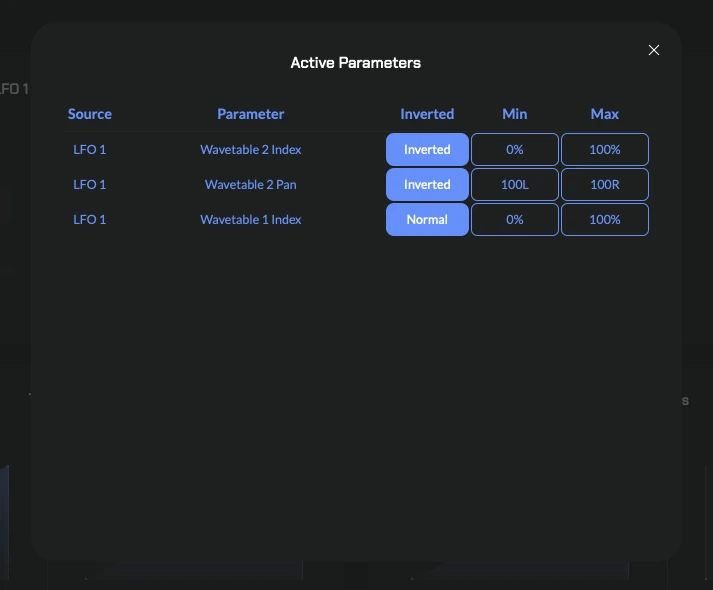
Macro Parameters
The Parameters button (top-right of the Modulation tab) opens the macro parameter table. Here you can see all active modulation connections with their min/max ranges.
- Invert: Flip the modulation direction—useful for creating opposite movement on paired parameters.
- Remove: Click on a parameter in the table and press DEL to delete the modulation connection.
Master Tab
The Master tab provides global output controls that affect the final mixed signal of all layers combined. Use this tab for final-stage adjustments before the sound reaches your DAW or speakers.
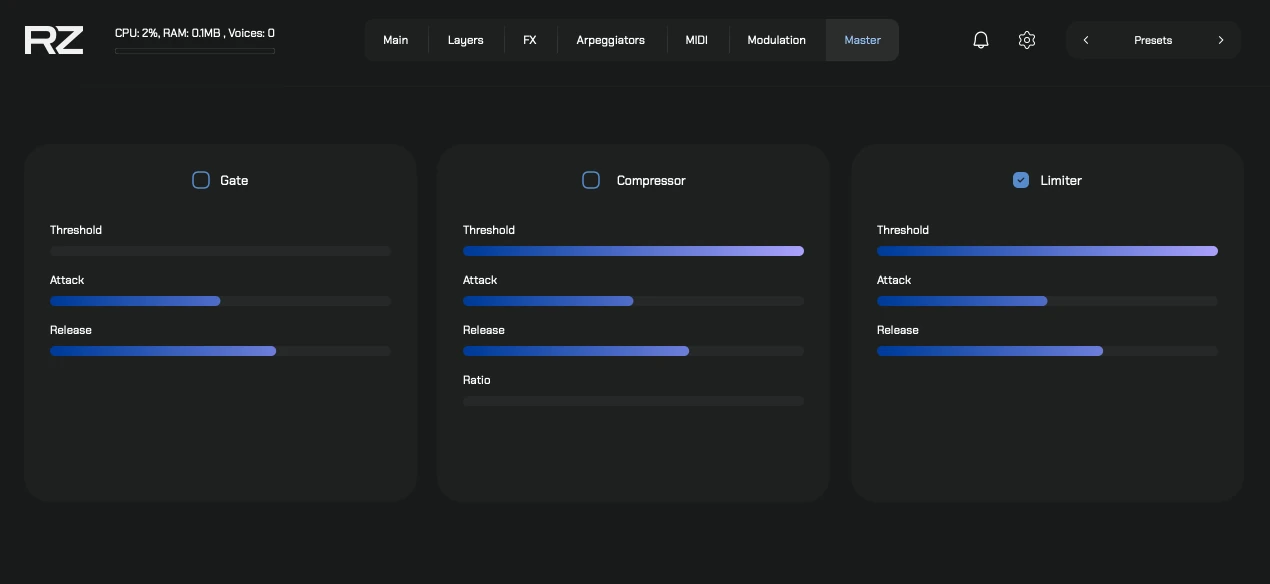
Master Effects
Three dynamics processors are applied to the master output in series. Each can be toggled on or off independently.
Gate
Cuts signal below a set level, useful for removing noise or tightening sustained tails.
- Threshold: Signal level below which the gate closes (−100 to 0 dB).
- Attack: How quickly the gate opens when signal exceeds the threshold (0–100 ms).
- Release: How quickly the gate closes after signal drops below threshold (0–300 ms).
Compressor
Reduces dynamic range by attenuating loud peaks, making the overall level more consistent.
- Threshold: Level above which compression begins (−100 to 0 dB).
- Attack: How fast the compressor reacts to peaks (0–100 ms).
- Release: How fast the compressor stops reducing gain after the signal drops (0–300 ms).
- Ratio: Amount of compression applied (1:1 to 32:1).
Limiter
A brickwall limiter that prevents the output from exceeding a set ceiling, protecting against clipping.
- Threshold: Maximum output level (−100 to 0 dB).
- Attack: How quickly the limiter engages (0–100 ms).
- Release: How quickly limiting is released (0–300 ms).
Presets
Presets save and recall the complete state of the instrument—all layer settings, FX chains, modulation assignments, and parameter values. Raizes Player ships with 58 built-in presets so you can start making music right away.

Loading Presets
The current preset name is displayed in the top bar. Use the Previous and Next arrows to cycle through available presets, or click the preset name to open the full preset browser.
Expansion Presets
Each expansion comes with its own collection of presets tailored to its sound content. When you switch expansions, the preset list updates to show presets specific to that expansion.
What Gets Saved
A preset stores:
- All 6 layer settings (gain, pan, width, envelope, filters, pitch).
- All FX rack configurations (which effects are loaded and their parameter values).
- Modulation assignments and LFO settings.
- Arpeggiator configurations.
- Sample map selections.
- Global effect values (Edge, Glow, Depth).
Keyboard
The bottom of the interface features a custom on-screen keyboard spanning 10 octaves.

Layer Visualization
The keyboard is color-coded to show which layers are active and their mapped ranges:
| Layer | Color |
|---|---|
| Layer 1 | Pink |
| Layer 2 | Blue |
| Layer 3 | Green |
| Layer 4 | Yellow |
| Layer 5 | Orange |
| Layer 6 | Purple |
Keys outside any mapped range appear grayed out. When you press a key, it glows with the color of the active layer(s), and a neon blur effect highlights the note.
MPE Glide Visualization
When using an MPE controller or the RZ Mobile app, the keyboard displays real-time glide indicators—animated particles that show the per-note pitch bend direction and intensity.
Mouse Interaction
Click and drag on the keyboard to play notes directly. Notes are triggered at velocity 100.
Settings
Access settings via the gear icon in the top bar.
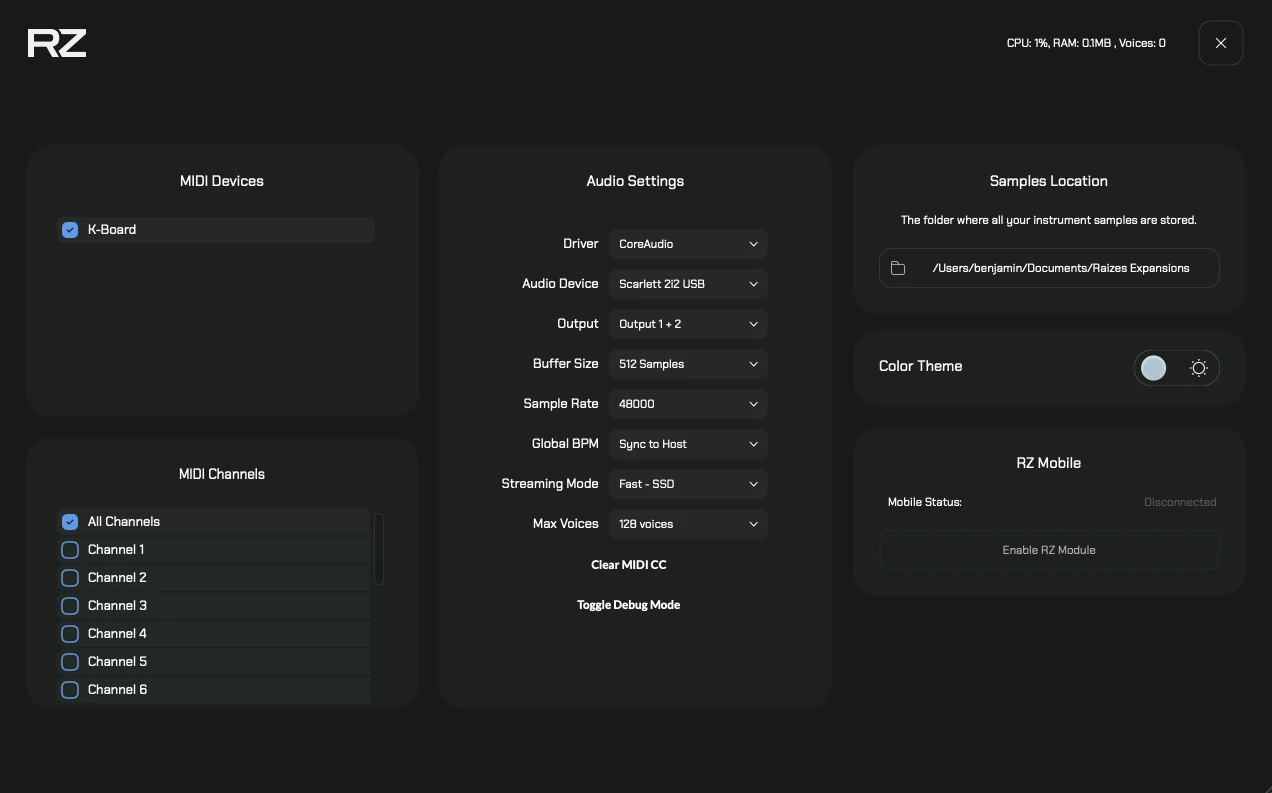
Theme
Switch between Dark and Light mode. The entire interface updates accordingly—panels, text, knobs, keyboard, and all visual elements.
Sample Folder
Change the location where expansion sample data is stored. The player will verify write access before accepting the new location.
MIDI Devices
Select which MIDI input devices are active. This is used in the standalone version to choose your MIDI controller(s).
MIDI Channels
Select which MIDI channels the player listens to. Useful for filtering input when multiple instruments share the same MIDI device.
Audio Settings (Standalone only)
These settings are available only in the standalone version of Raizes Player:
| Setting | Description |
|---|---|
| Driver | Select the audio driver (e.g., CoreAudio, ASIO, WASAPI). |
| Audio Device | Choose which audio interface or output device to use. |
| Output Buffer Size | Set the buffer size. Lower values reduce latency; higher values improve stability. |
| Sample Rate | Set the audio sample rate (e.g., 44100, 48000, 96000 Hz). |
| Global BPM | Set the tempo for time-synced effects and arpeggiators when running standalone. |
| Streaming Mode | Configure how samples are streamed from disk. |
| Max Voices | Limit the maximum number of simultaneous voices to manage CPU usage. |
| Clear MIDI CC | Reset all MIDI CC assignments to their default state. |
| Toggle Debug Mode | Enable or disable the debug console for troubleshooting. |
RZ Mobile
Enable or disable the RZ Mobile bridge connection. See the RZ Mobile App section for full details.
RZ Mobile App
The RZ Mobile app turns your tablet or smartphone into a powerful remote controller for the Raizes Player, offering new ways to interact with the instrument.
Connection Setup
- Enable the connection in the Raizes Player Settings tab.
- Ensure both your computer and mobile device are connected to the same Wi-Fi network.
- The connection status indicator shows Connected (green) or Disconnected (red).
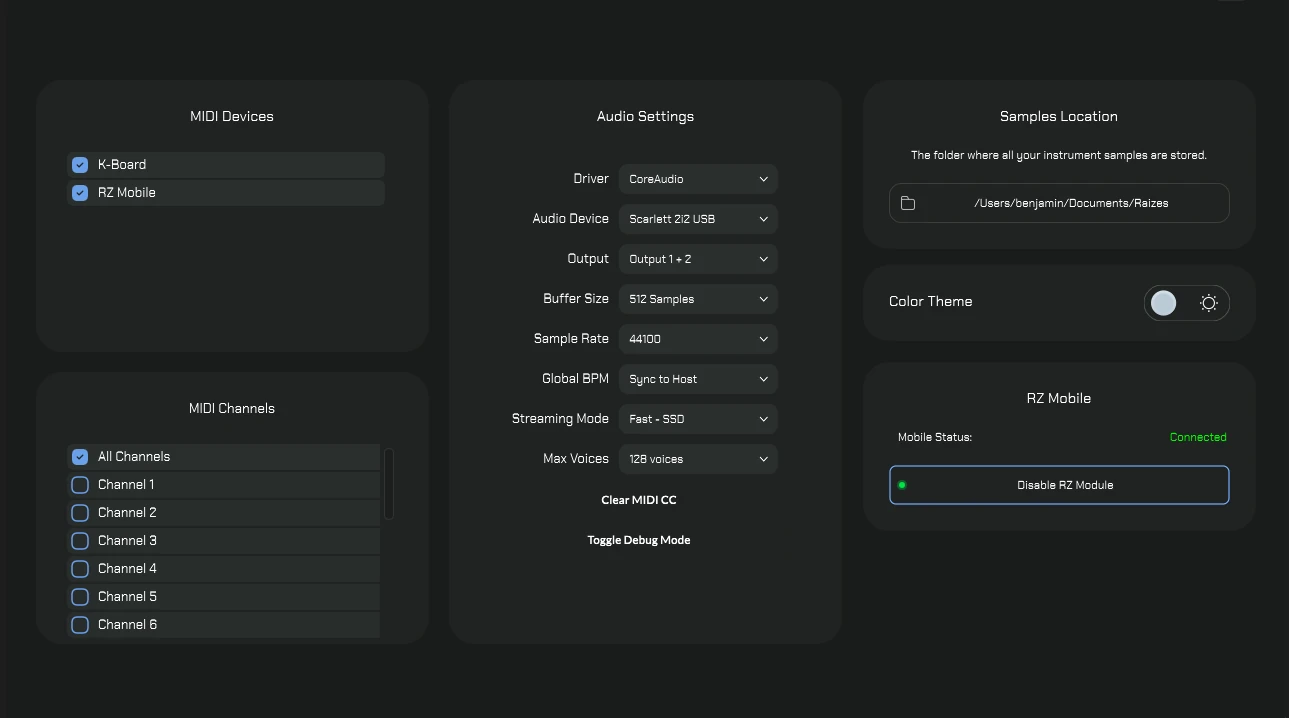
Important MIDI Setup: After creating the port (Windows) or connecting (Mac), you must
enable the RZ Mobile input in the MIDI Devices settings of Raizes
Player (if using Standalone) or within your DAW’s MIDI Preferences (if
using as a VST3/AU plugin).
Windows Users Setup
Since Windows does not natively support virtual MIDI ports, you need a third-party driver.
- Download and install loopMIDI (free software).
- Open loopMIDI and click the + button to create a new port.
- Important: Name this port exactly
RZ Mobile. - Raizes Player will now automatically detect and use this port for communication.
RZ Mobile App Tabs
1. Main View
The hub for connection status and quick access. On this tab, you can remotely control the Edge, Glow, and Depth sliders to shape the character of the sound.
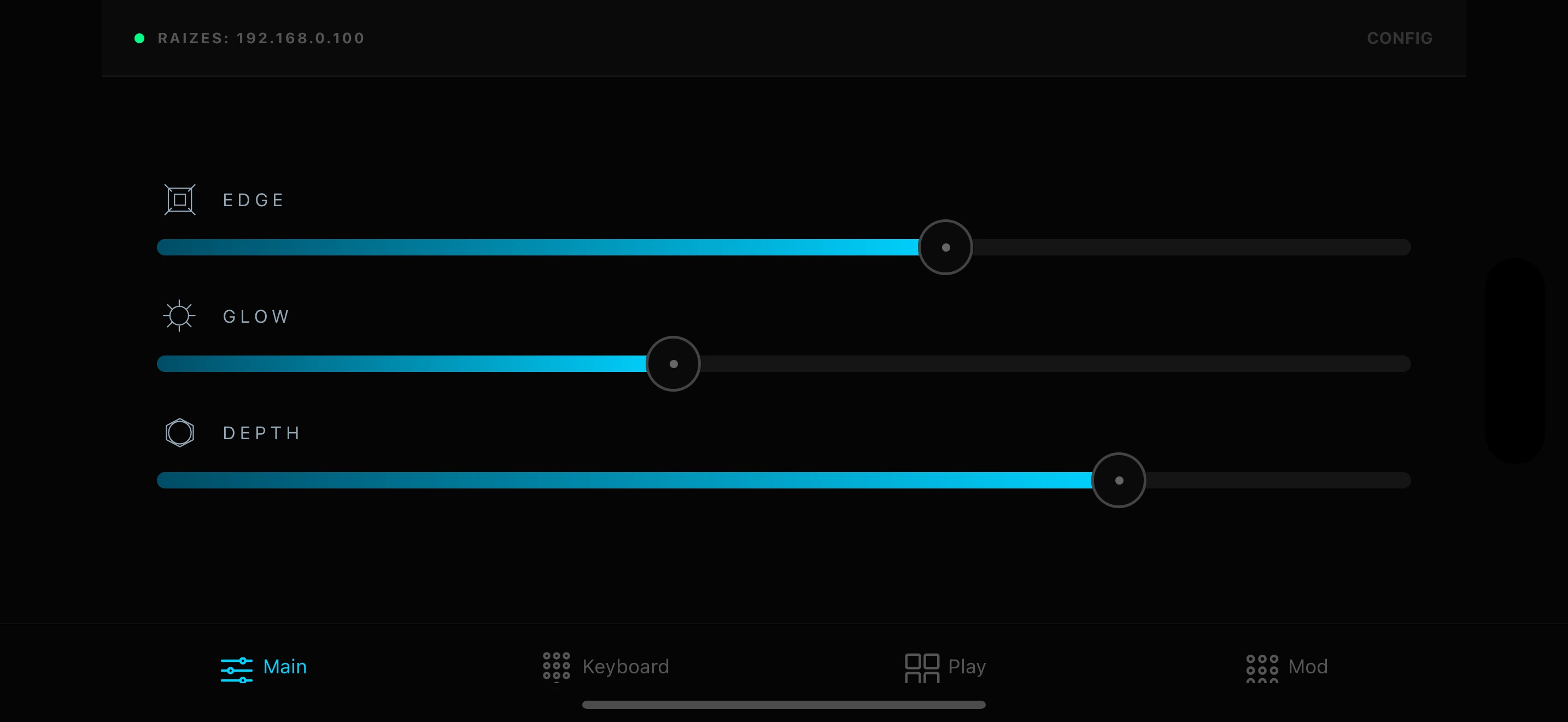
2. Keyboard Tab
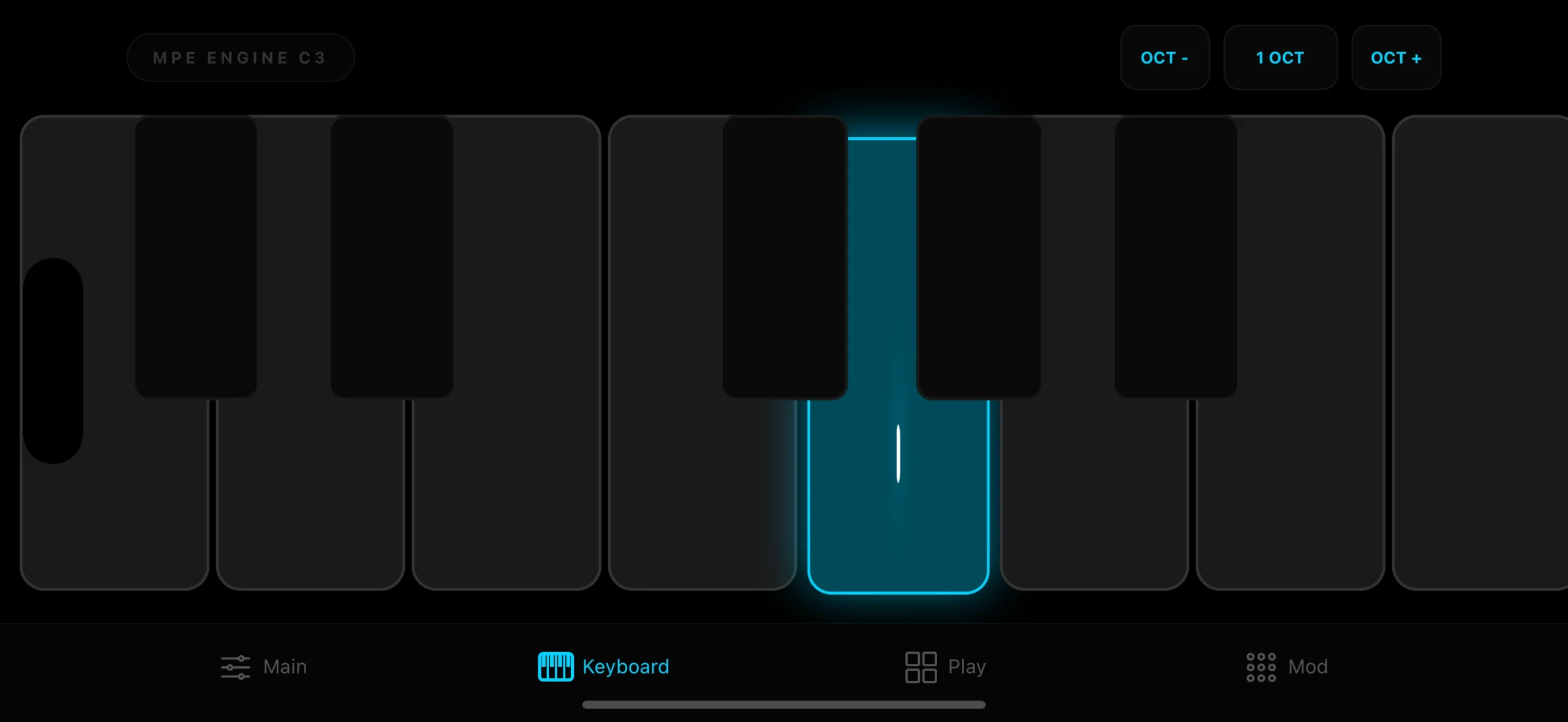
A touch-optimized keyboard that supports MPE (MIDI Polyphonic Expression). It sends MPE Glide messages to the player, allowing you to use MPE Presets that utilize glide or assign it manually for expressive pitch bends.
3. Play Tab
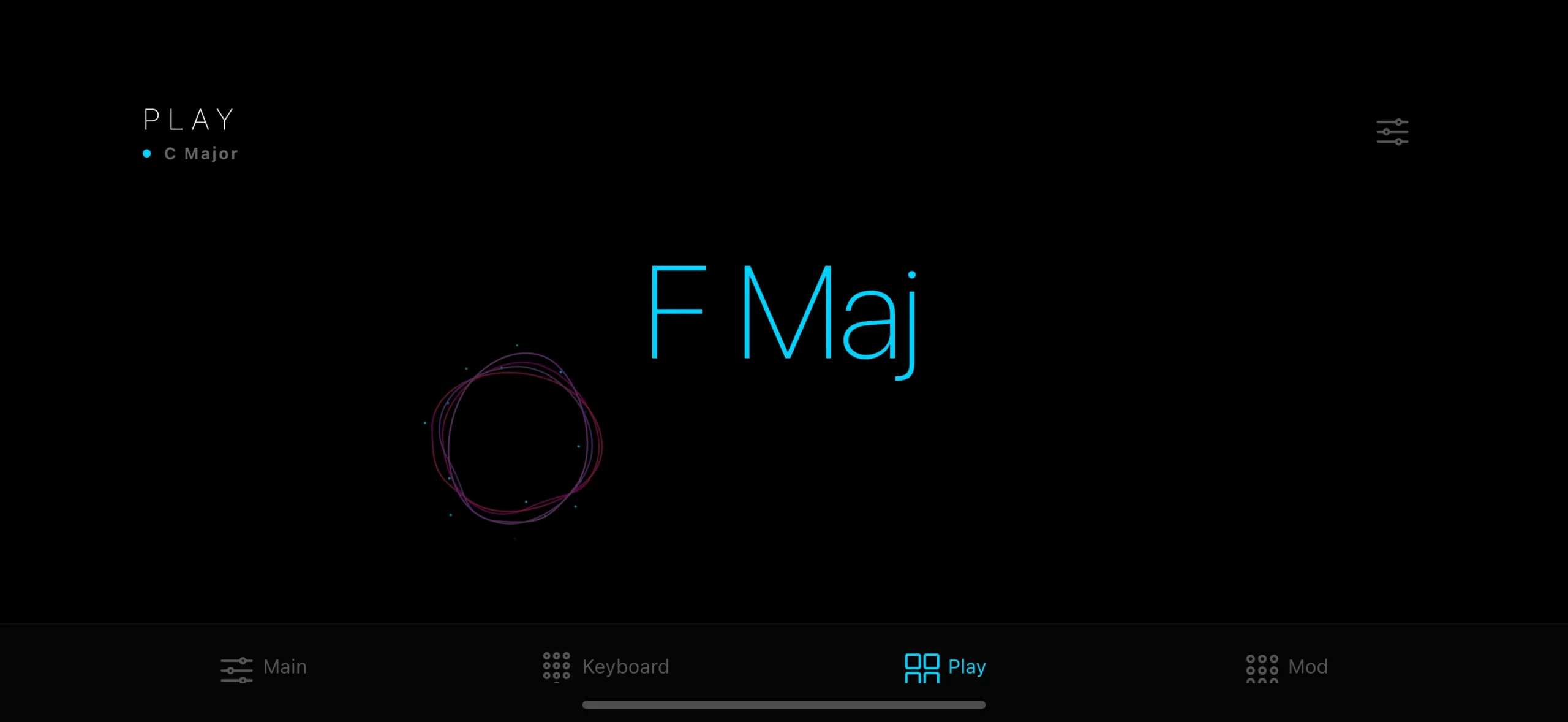
Generative Composition: Create complex harmonic progressions with a single finger. RZ Mobile’s intelligent engine interprets your touch position and pressure to generate chords and melodies that always sound musical. Includes algorithms for real-time adjustable scale and roots.
4. Modulation Tab
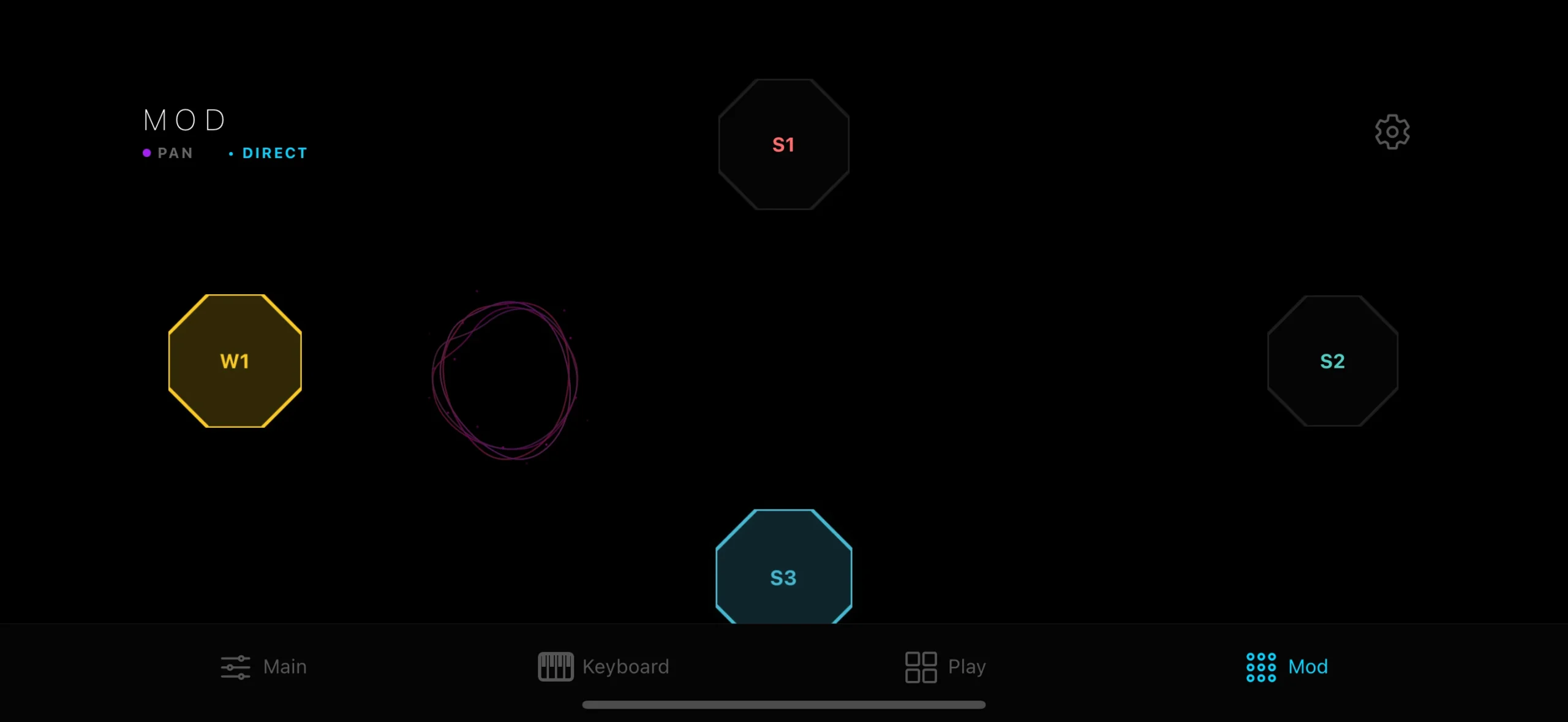
Control multiple parameters (Filters, Gain, Pan) by navigating between sampler nodes. This tab also features a Motion Sensor: Tilt your device to modulate physical parameters in real-time. Your mobile device becomes a 3D expression pedal!
 We use cookies to enhance your experience, analyze site traffic, and personalize content. By accepting, you help us show you more relevant offers and improve your overall experience.