c

Raizes Player Manual
Raizes Player is a platform for creativity, allowing you to combine deep sampling with advanced synthesis. Whether you are performing live or designing soundscapes in the studio, the player provides a flexible architecture to shape your sound.
Installing Instruments
The core of Raizes Player is its Expansions—collections of sounds and presets. We have streamlined the installation process with a built-in Downloader Manager.
Important: An internet connection is required to install instruments.
However, once installed, you can use the player and all its features completely
offline.
First Time Setup
If this is your first time launching Raizes, a setup screen will appear.
- Storage Location: You will be asked to select a destination for your sample content.
Pro-Tip: You can choose an external drive to save space on your computer’s internal
hard drive.
Step 1: Login
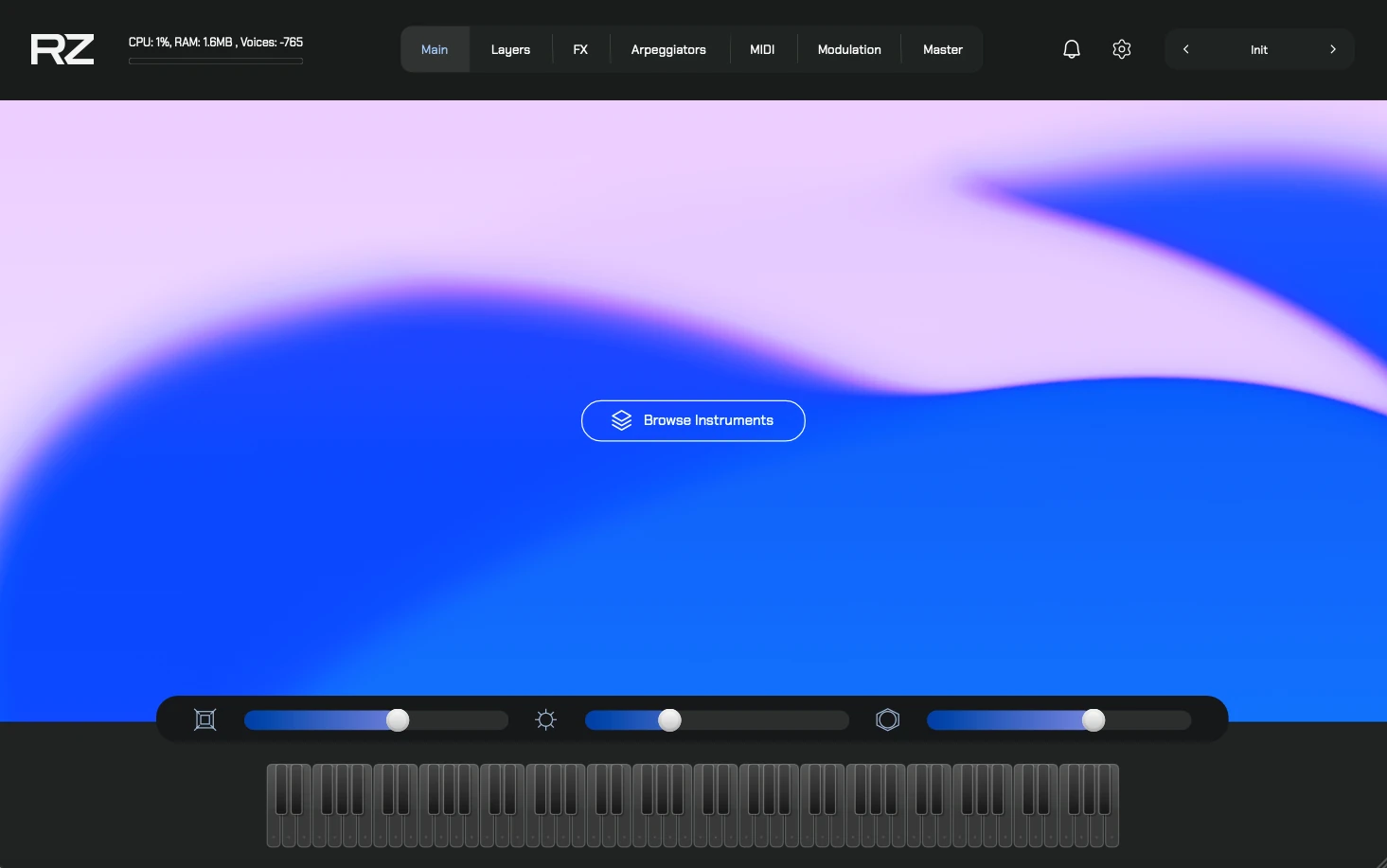
Open the player and navigate click Browse Instruments. You will be prompted to log in with your account credentials (email and password).
Step 2: Download & Install
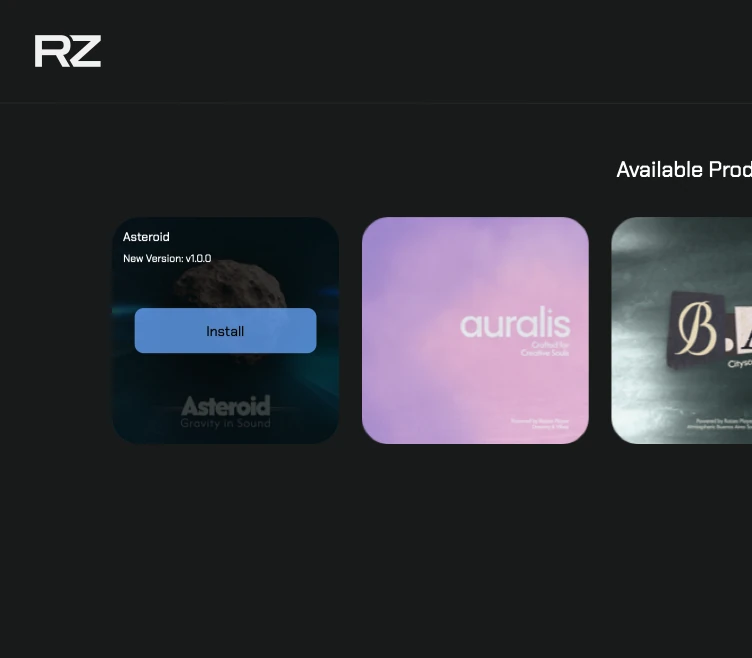
Once logged in, the player will show a list of your owned products.
- Products you own will appear in the list.
- Click Download to automatically download and install the expansion.
- If an update is available, an Update button will appear.
The Layers Engine
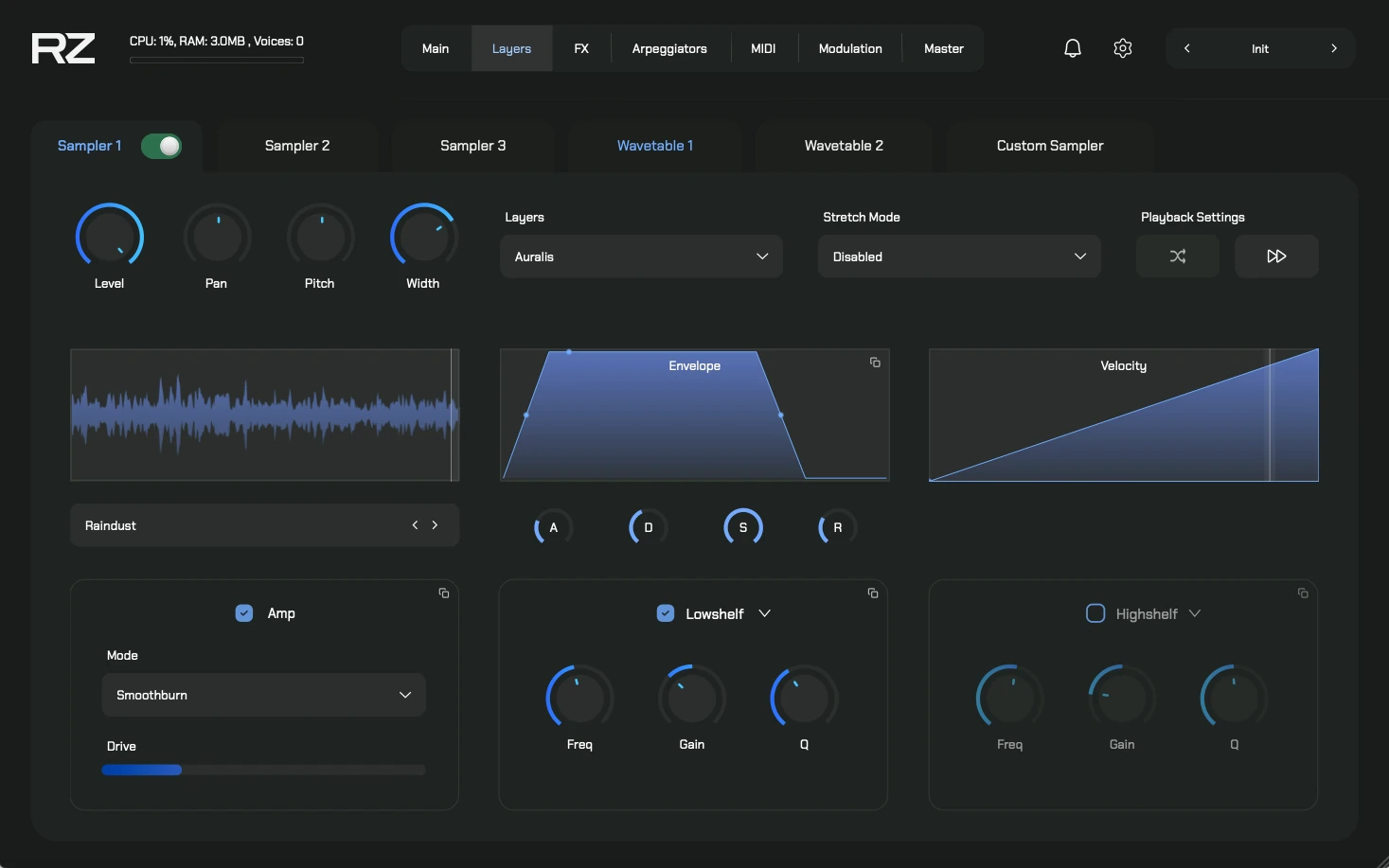
Raizes Player features 6 independent audio layers, allowing for massive stacking capability.
Layer Types
- Layers 1, 2, 3 (Samplers): These layers load sample maps from your expansions.
- Layers 4, 5 (Wavetables): Synthesis layers using wavetable technology (Waterfall engine).
- Layer 6 (Custom Sampler): A special layer where you can drag and drop your own audio samples to mix them with the engine’s sounds.
Layer Controls
Every layer is equipped with a full channel strip:
- Mixer: Level, Pan, Width.
- Pitch: Transpose the layer in semitones.
- Amp Drive: Add saturation/distortion specific to that layer.
- Envelope (AHDSR): Shape the Attack, Hold, Decay, Sustain, and Release.
- Filters: Two independent filters per layer. Selector allows choosing from Lowpass, Highpass, Lowshelf, Highshelf, Peak, Bandpass, and Notch. Each filter includes controls for Freq, Gain, and Q.
Sampler Specifics (Layers 1-3)
In addition to the standard controls, sampler layers include advanced playback settings:
Stretch Mode
- Start: Sets a fixed playback start position.
- Time Variant: Allows modifying the start position in real-time using the slider.
- Tempo Synced: Synchronizes playback speed with your DAW.
CPU Warning: Using Stretch Mode requires significant processing power. It is
recommended to use this feature only on powerful computers.
Playback Settings
- Random: Starts the sample from a different random position each time a note is played.
- Forward/Backwards: Controls the playback direction of the sample.
Wavetable Specifics (Layers 4-5)
The synthesis layers offer unique parameters for sound shaping:
- Index: Modifies the read position within the wavetable.
- Voices: Doubles the number of voices (Unison). Includes knobs for Detune and Spread.
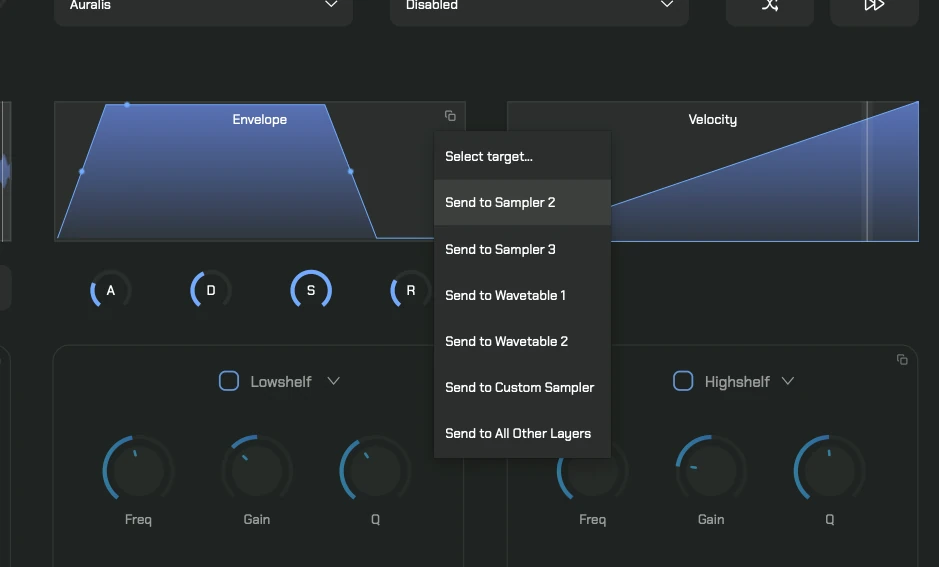
Time-Saving Feature: Look for the Copy/Paste buttons (often an icon
resembling documents or an arrow). You can click this to “Send Settings to Layer X” or “Send to All
Layers,” allowing you to quickly duplicate Envelopes, Amp settings, or Filter configurations across the
entire instrument.
FX Rack
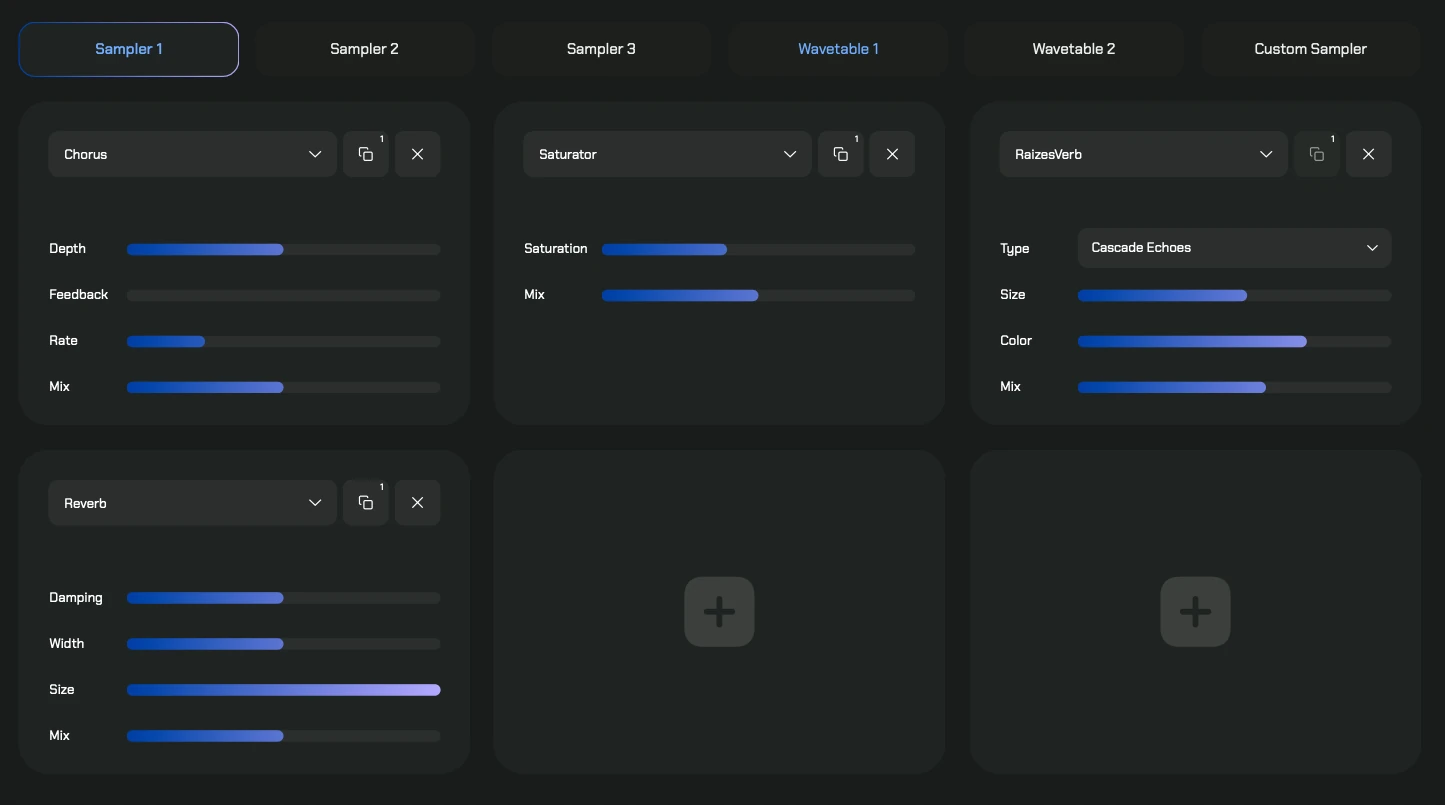
Sculpt your tone with the 6-slot FX Rack available for each layer independently.
Available Effects
Load any of these processors into any slot:
- EQ, Saturator, BitCrusher: For tone shaping and grit.
- Chorus, Phaser, Wow/Flutter: For modulation and movement.
- Delay, ChillDelay: For echoes and ambient textures.
- Reverb, RaizesVerb: Essential spatial effects.
Copy/Paste FX
Just like the layer controls, you can copy an entire effect’s setting and paste it into another slot to duplicate your favorite processing chains.
Modulation System
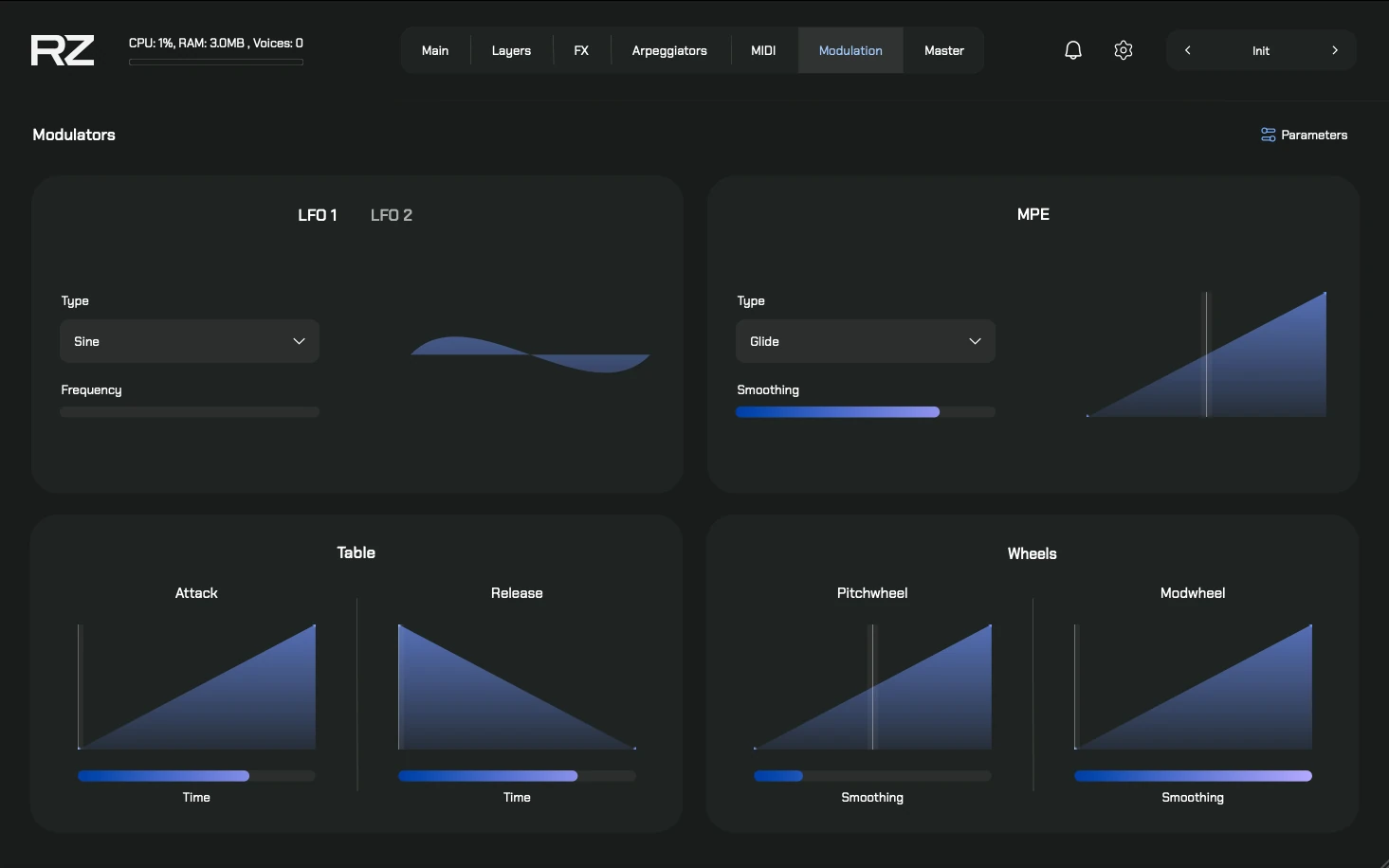
Raizes Player offers a deep modulation matrix with 5 primary sources that can control almost any parameter.
Modulation Sources
- LFO 1
- LFO 2
- Table: A custom curve editor (Attack/Release shapes).
- Pitch Wheel
- Mod Wheel (CC1)
How to Assign Modulation
Assigning modulation is intuitive:
Right-click on any knob or slider in the interface. A context menu will appear with
options like “Connect to LFO 1” or “Connect to Mod Wheel”. Select your source, and the modulation is
instantly applied.
Arpeggiator
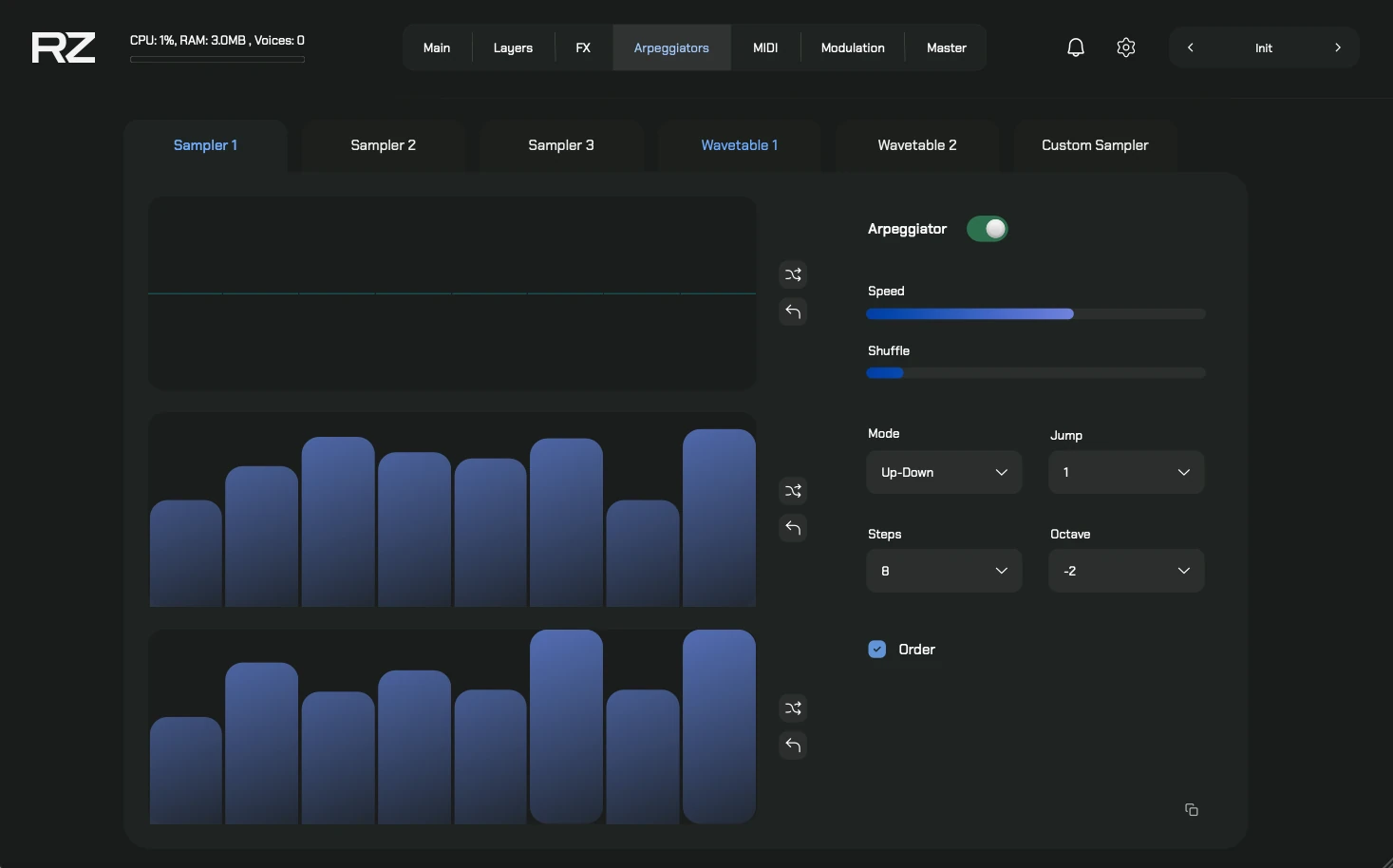
The Arpeggiator section features 3 separate engines (Arp 1, 2, 3), allowing for complex rhythmic patterns. You can enable different arpeggiators for specific layers.
Arpeggiator Modes
There are 3 dedicated tab graphs for plotting your sequence:
- 1. Note Numbers: Defines the melodic interval for each step.
- 2. Velocity: Controls the volume/strength of each step.
- 3. Note Length: Determines the duration of each note step.
Controls
- Mode: Select the playback direction:
- Up, Down, Up-Down, Down-Up
- Random
- Chords (plays all pressed notes simultaneously on each step)
- Jump: Sets the interval (in semitones) between each arpeggiated step.
- Steps: Select the sequence length (from 1 to 32 steps).
- Octave: Defines the octave spread for the arpeggiated notes (Range: -2 to +4).
Additional Functions
- Order Button: Sorts the pressed notes in ascending order for consistent playback.
- Random & Reset: Use these buttons to instantly randomize the graph values or reset them to default settings.
MIDI Generator
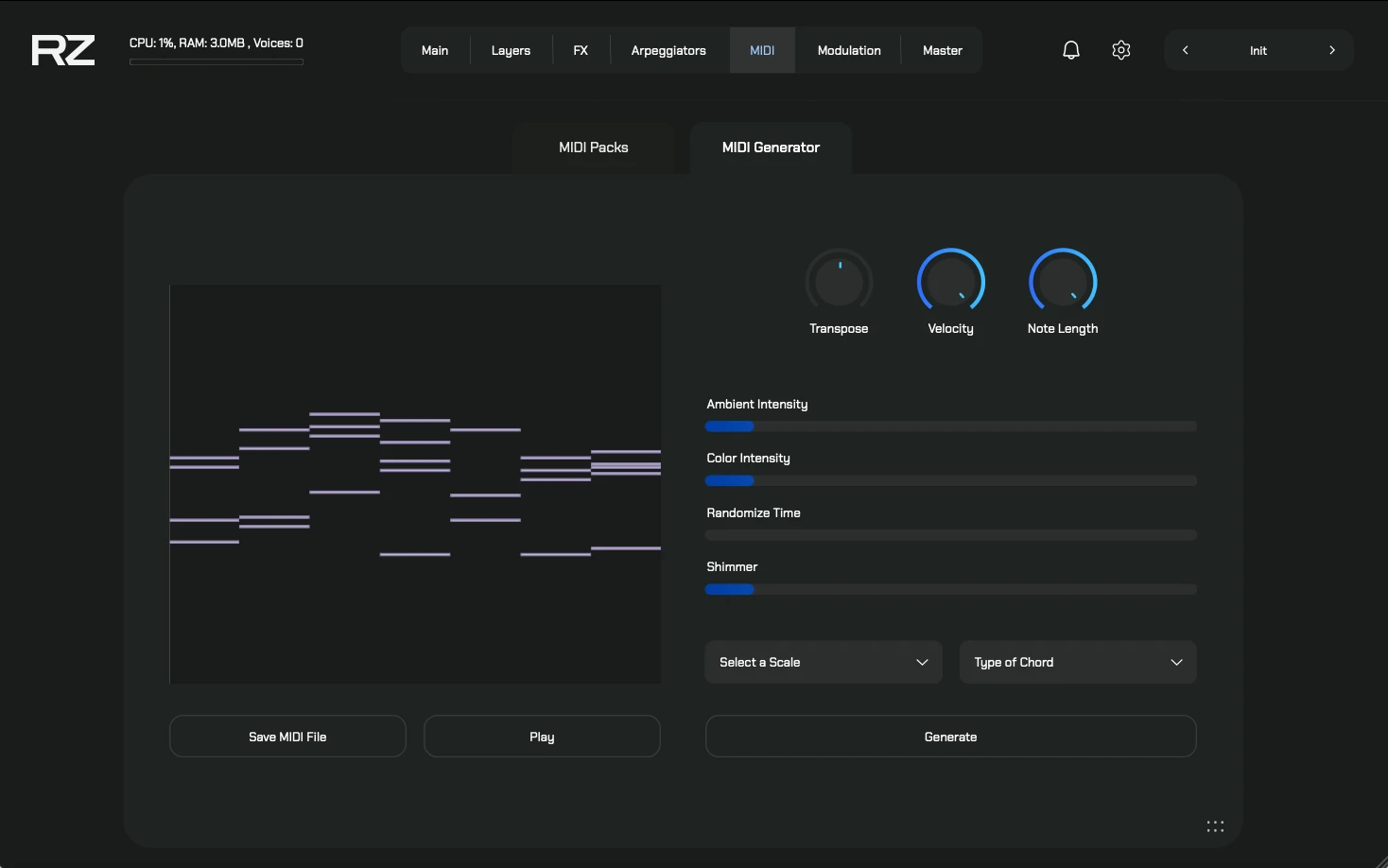
The MIDI section allows you to generate sequences or browse MIDI files to drag into your DAW.
- Generator: Select a Scale and Chord Type, then tweak parameters like “Ambient Intensity” or “Shimmer” to generate a unique sequence.
- Browser: Access your MIDI library organized by category.
RZ Mobile App
The RZ Mobile app turns your tablet or smartphone into a powerful remote controller for the Raizes Player, offering new ways to interact with the instrument.
Connection Setup
- Enable the connection in the Raizes Player Settings tab.
- Ensure both your computer and mobile device are connected to the same Wi-Fi network.
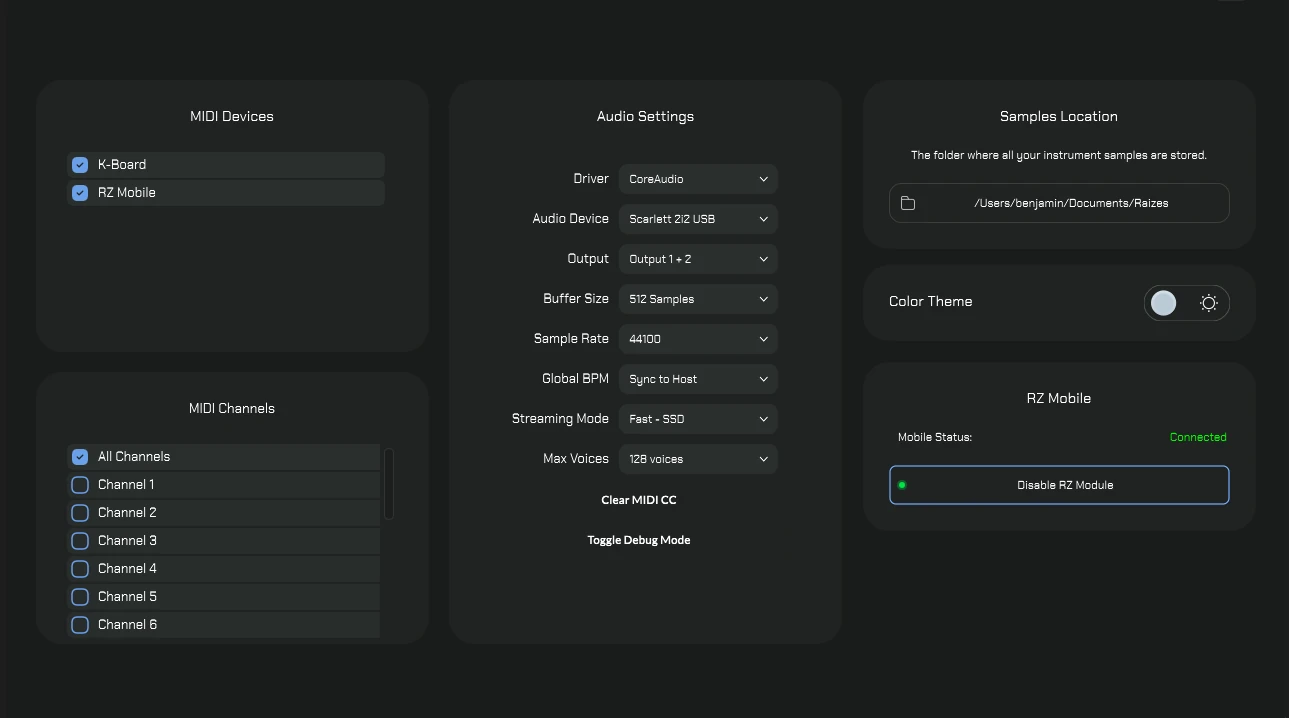
Important MIDI Setup: After creating the port (Windows) or connecting (Mac), you must
enable the RZ Mobile input in the MIDI Devices settings of Raizes
Player (if using Standalone) or within your DAW’s MIDI Preferences (if
using as a VST3/AU plugin).
Windows Users Setup
Since Windows does not natively support virtual MIDI ports, you need a third-party driver.
- Download and install loopMIDI (free software).
- Open loopMIDI and click the + button to create a new port.
- Important: Name this port exactly
RZ Mobile. - Raizes Player will now automatically detect and use this port for communication.
RZ Mobile App Manual
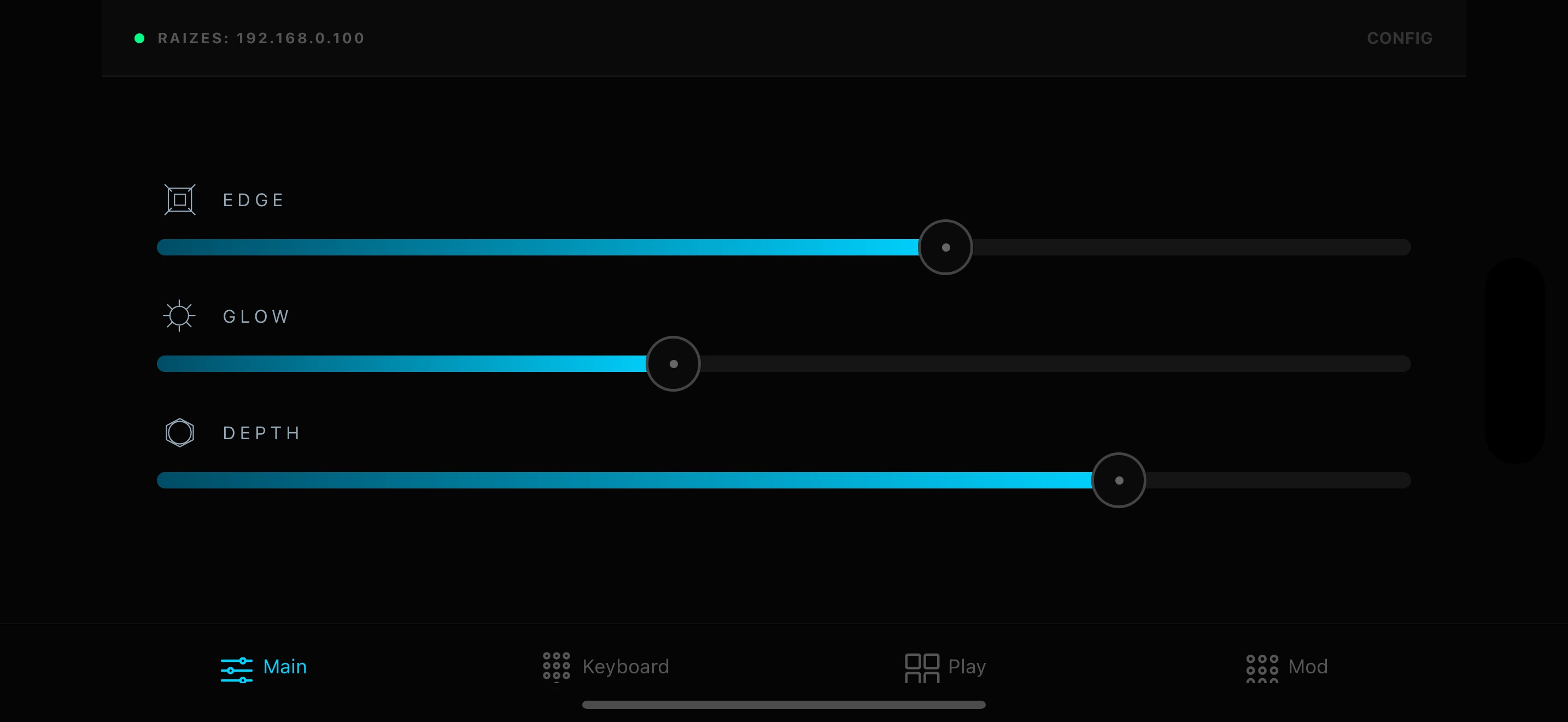
1. Main View
The hub for connection status and quick access. On this tab, you can also control the Edge, Glow, and Depth sliders remotely to shape the character of the sound.
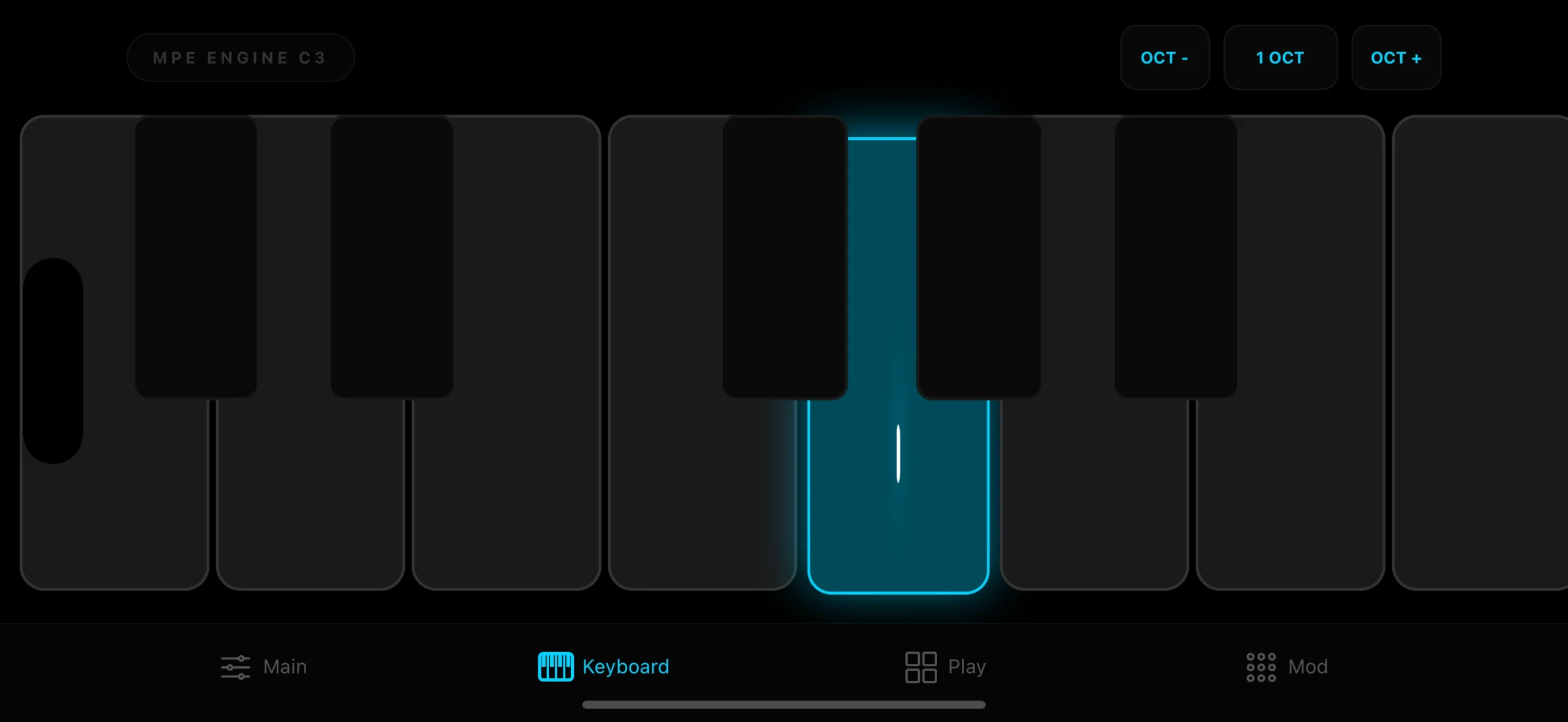
2. Keyboard Tab
A touch-optimized keyboard that supports MPE (MIDI Polyphonic Expression). It sends **MPE Glide** messages to the player, allowing you to use MPE Presets that utilize glide or assign it manually for expressive pitch bends.
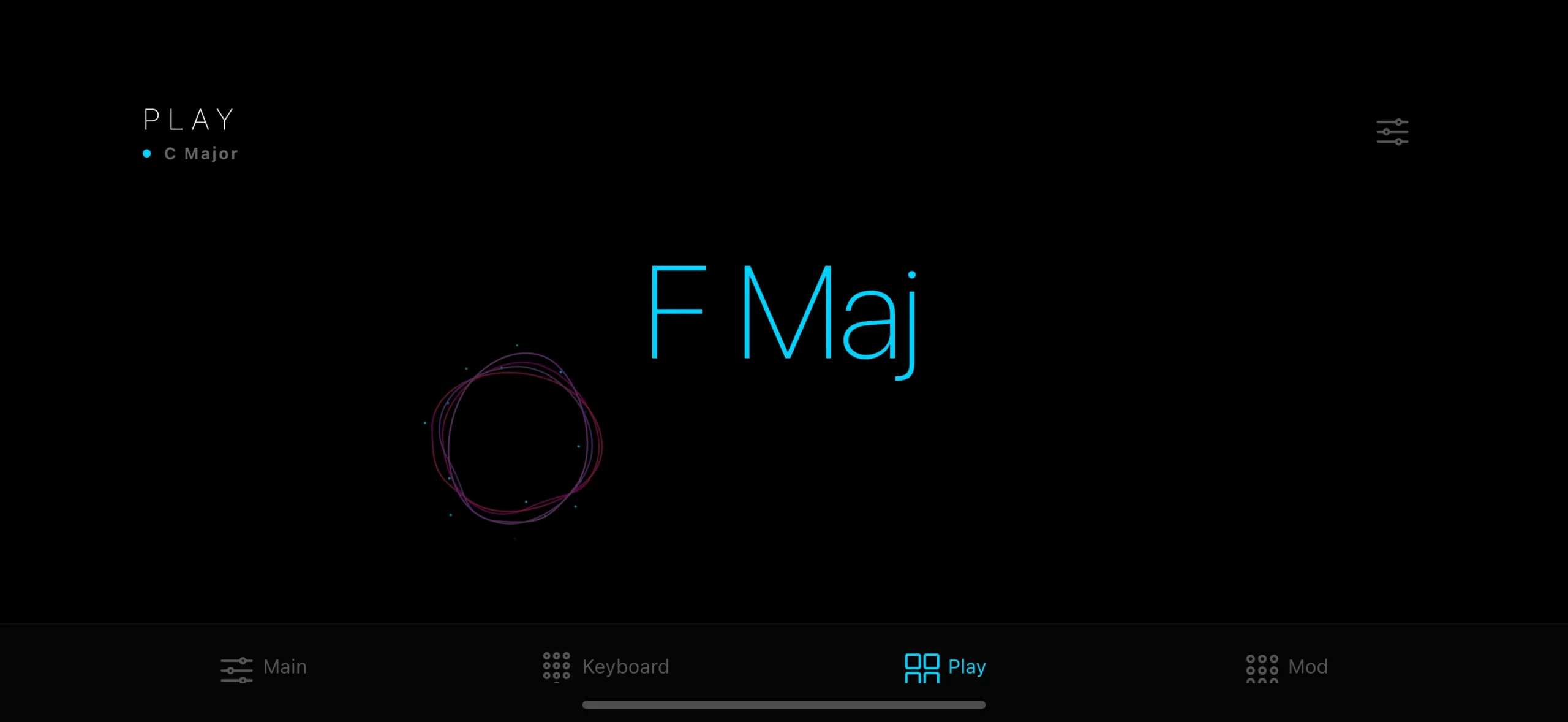
3. Play Tab
Generative Composition: Create complex harmonic progressions with a single finger. RZ Mobile’s intelligent engine interprets your touch position and pressure to generate chords and melodies that always sound musical. Includes algorithms for real-time adjustable scale and roots.
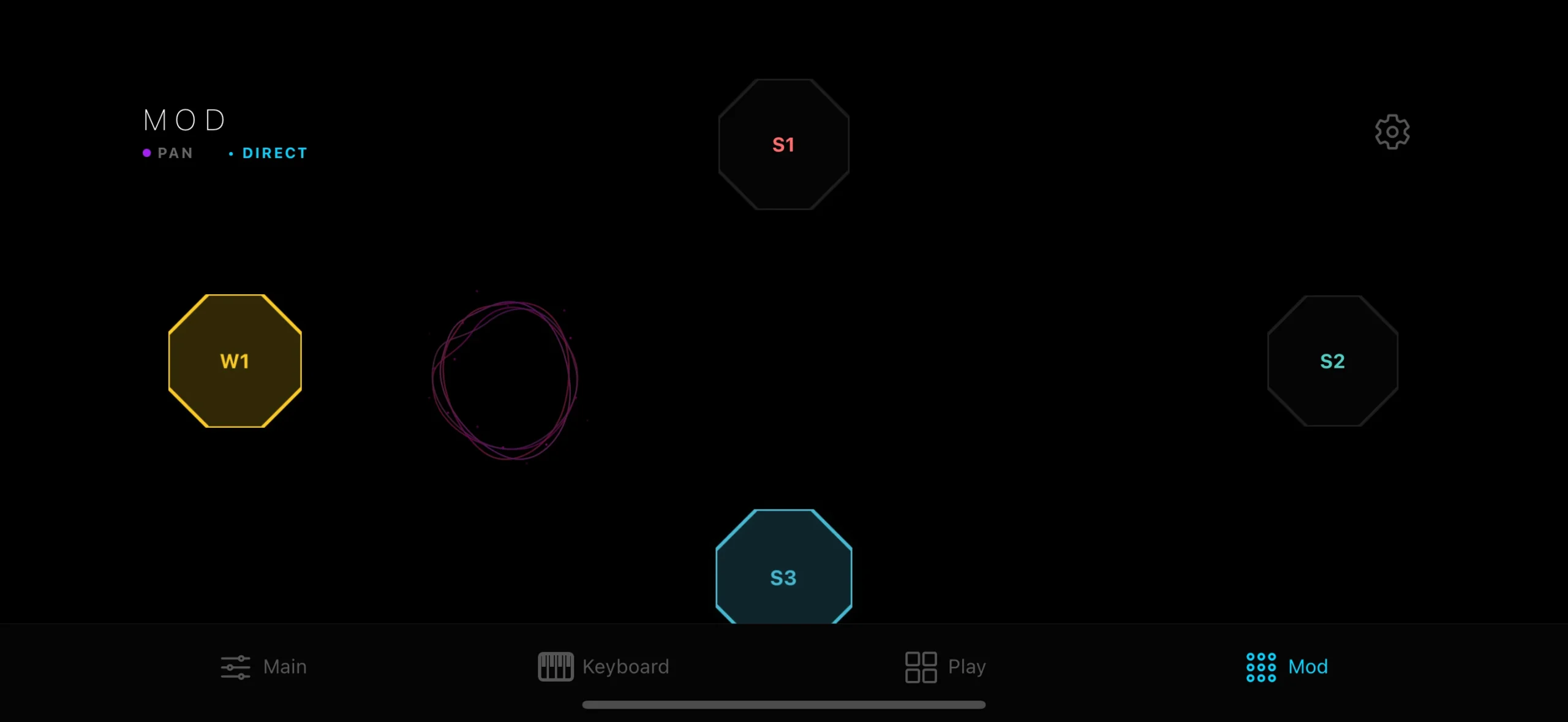
4. Modulation Tab
Control multiple parameters (Filters, Gain, Pan) by navigating between sampler nodes. This tab also features a Motion Sensor: Tilt your device to modulate physical parameters in real-time. Your mobile device becomes a 3D expression pedal!
 We use cookies to enhance your experience, analyze site traffic, and personalize content. By accepting, you help us show you more relevant offers and improve your overall experience.